- [Case Studies](https://www.mergado.com/category/case-studies)
- [eCommerce tips](https://www.mergado.com/category/ecommerce-tips)
- [Online Store Solutions and Platforms](https://www.mergado.com/category/online-store-solutions-and-platforms)
- [Mergado Pack](https://www.mergado.com/category/mergado-pack)
- [Mergado tips](https://www.mergado.com/category/mergado-tips)
- [Mergado News](https://www.mergado.com/category/mergado-news)
- [eCommerce News](https://www.mergado.com/category/ecommerce-news)
- [How to use Mergado](https://www.mergado.com/category/how-to-use-mergado)
- [Interviews with e‑commerce gurus](https://www.mergado.com/category/interviews-e-commerce-gurus)
- [Extensions](https://www.mergado.com/category/apps-bidding-image-marketing-and-more)
- [Expansion with Mergado](https://www.mergado.com/category/expansion-with-mergado)
- [Mergado Lifestyle](https://www.mergado.com/category/mergado-lifestyle)
1. [ Home ](https://www.mergado.com/)
2. [ Mergado Blog ](https://www.mergado.com/blog)
3. [ How to use Mergado ](https://www.mergado.com/category/how-to-use-mergado)
4. **Get started with Mergado vol. 1**
# **Get started with Mergado vol. 1**
[  Radim Zhoř ](https://www.mergado.com/blog/radim-zhor) [How to use Mergado](https://www.mergado.com/category/how-to-use-mergado)
7. 2. 2018
3 minutes read

We prepared a step-by-step guide to help you get started in Mergado and learn how to manage your product campaigns on comparison shopping services. Everything you need to know to quickly become a Mergado professional. And here is the 1. volume.
function tableOfContents() {
return {
headings_menu: [],
heading_active: '', // Added to track the active section
shouldBeSticky: false,
generateToC() {
const headings = document.querySelectorAll('.js-article-full-headings h2, .js-article-full-headings h3');
let headingMap = {};
headings.forEach((heading) => { // Use an arrow function to maintain `this` context
// Normalize heading text to remove diacritics, then replace non-alphanumeric characters with dashes
var normalizedText = heading.textContent.normalize("NFD").replace(/[\u0300-\u036f]/g, ""); // Remove diacritics
var id = heading.id ? heading.id : normalizedText.trim().toLowerCase()
.split(' ').join('-').replace(/[^a-z0-9\-]/ig, ''); // Updated regex to replace non-alphanumeric characters
headingMap[id] = headingMap[id] !== undefined ? ++headingMap[id] : 0;
// Use the updated `id` with diacritics removed for the heading id and the TOC
const finalId = headingMap[id] ? `${id}-${headingMap[id]}` : id;
this.headings_menu.push({
id: finalId,
title: heading.textContent,
level: heading.tagName.toLowerCase(), // Track heading level
active: false, // Initially set active to false
});
heading.id = finalId;
});
},
checkStickyNeeded() {
const ul = this.$el.querySelector('ul');
if (ul) {
this.shouldBeSticky = ul.scrollHeight < window.innerHeight;
}
},
setActiveHeading() {
// disabled not working with active state on click
// add @scroll.window="setActiveHeading()" to the parent div
// const headings = document.querySelectorAll('.js-article-full-headings h2');
// let activeHeading = '';
// let closestHeadingDistance = Infinity;
// headings.forEach((heading) => {
// const rect = heading.getBoundingClientRect();
// const offset = rect.top - window.innerHeight / 2; // Consider heading in the middle of the screen as active
// if (offset < 0 && Math.abs(offset) < closestHeadingDistance) {
// activeHeading = heading.id;
// closestHeadingDistance = Math.abs(offset);
// }
// });
// // Update the active state in headings_menu
// if (activeHeading !== this.heading_active) {
// this.headings_menu = this.headings_menu.map(item => ({
// ...item,
// active: item.id === activeHeading,
// }));
// this.heading_active = activeHeading;
// }
},
setActiveItem(clickedId) {
this.headings_menu.forEach(item => {
item.active = (item.id === clickedId);
});
this.heading_active = clickedId; // Optionally update the heading_active property if used
},
};
}
1. —
We prepared a **step-by-step guide** to help you **get started** in Mergado and learn how to manage your **product campaigns** on comparison shopping services. Everything you need to know to quickly become a **Mergado professional**. And here is the volume #1.
[  ](https://www.mergado.com/sites/default/files/perm/paragraph-image/getstartedwithmergado4.png)
## How to register
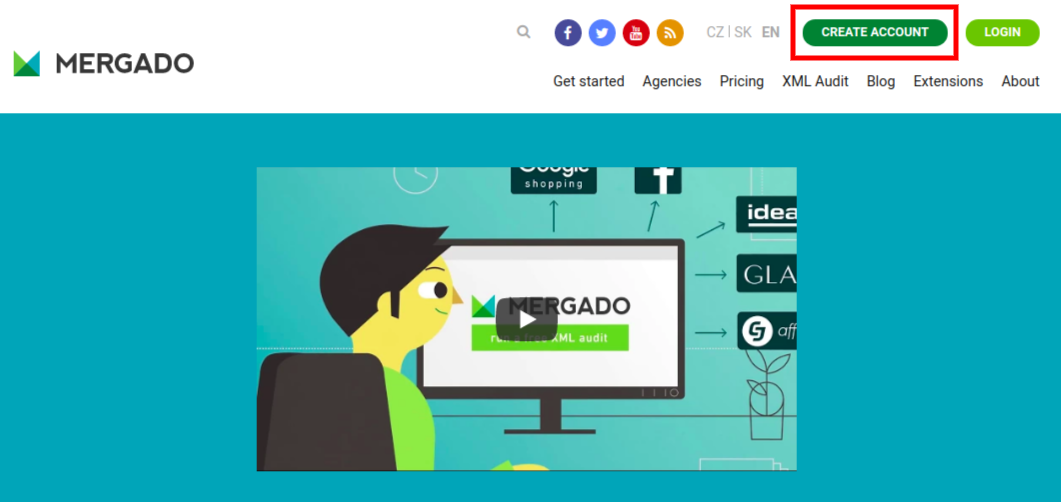
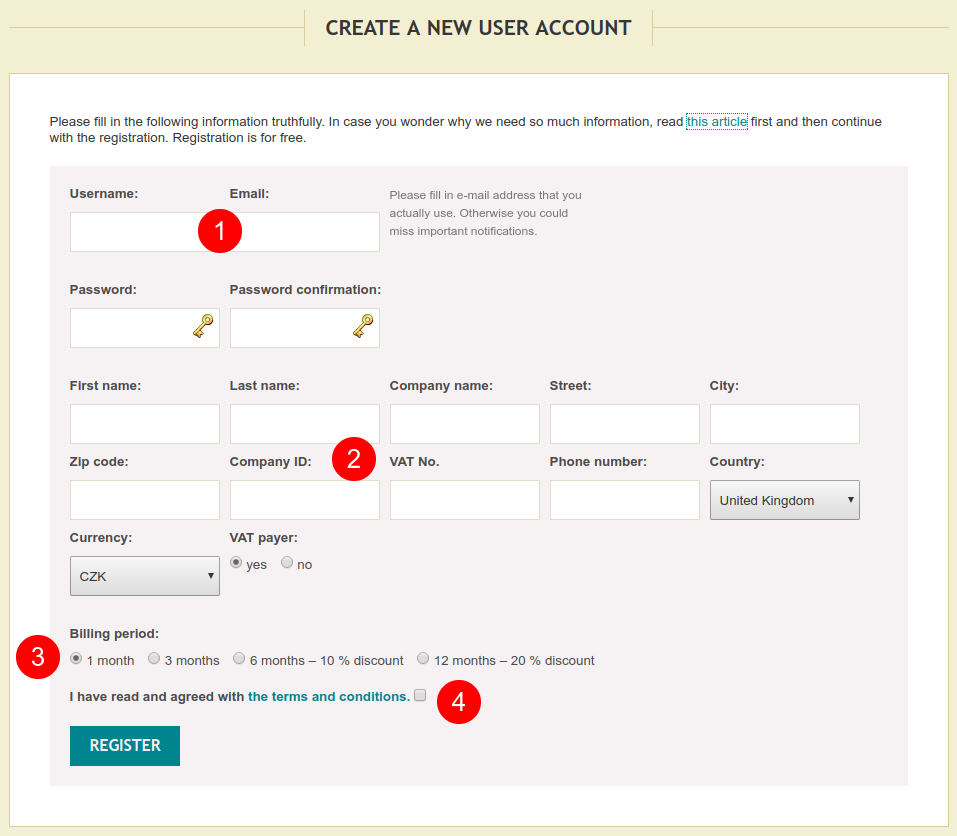
You can register right from the [Mergado home page](https://www.mergado.com/) by clicking **[Create account](https://accounts.mergado.com/register/)** (image 1) and filling out the **registration form** (image 2).
[  ](https://www.mergado.com/sites/default/files/perm/paragraph-image/mergadocreateaccountbutton.png)
Make sure you **fill out all the fields correctly**. All the required information are important for Mergado to work properly and for you to receive invoices with **correct billing details** and in a **correct mailbox**.
Then choose a desired **billing period** (step 3). You can change this anytime in the future depending on your or your client’s needs.
Before submitting please don’t forget to read and agree with our **[Terms of use](https://www.mergado.com/terms-of-use)** (step 4).
[  ](https://www.mergado.com/sites/default/files/perm/paragraph-image/createanewuseraccountinmergado.png)
After submitting you will receive a **confirmation email** to complete your registration.
When you login you can **create your first export** and start managing your product campaigns.
It is important to say that **creating an account is free** and can be canceled anytime. You pay only after creating one or more exports. This is also when the **30 day free trial** starts. The actual tariff depends on the total number of items in all your exports combined (see [pricing](https://www.mergado.com/pricing) for more information).
## How to create a first export
To be able to start optimizing your advertising first you need to **create an export**. Login to your account and click **Create export** on the top right (image 3).
[  ](https://www.mergado.com/sites/default/files/perm/paragraph-image/createnewexportinmergado.png)
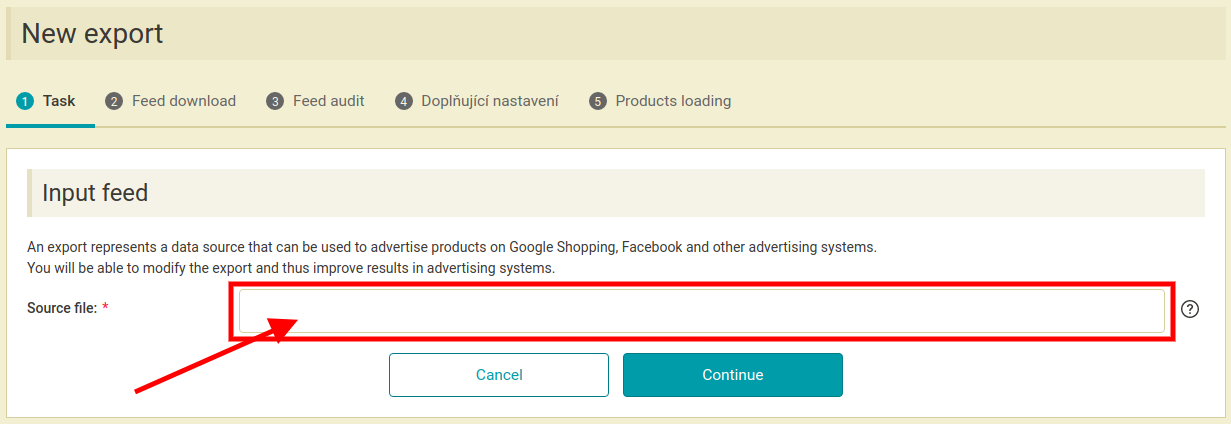
On the next page provide a **URL address** of your source xml feed (image 4). Mergado will regularly (every 4 – 8 hours) access this file to **check for** any **updates** in the feed (new products, price changes etc.). Click **Continue** and wait until Mergado processes the file (time depends on the number of items in the feed, usually few seconds).
[  ](https://www.mergado.com/sites/default/files/perm/paragraph-image/inputurladdressofyourxmlfeed.png)
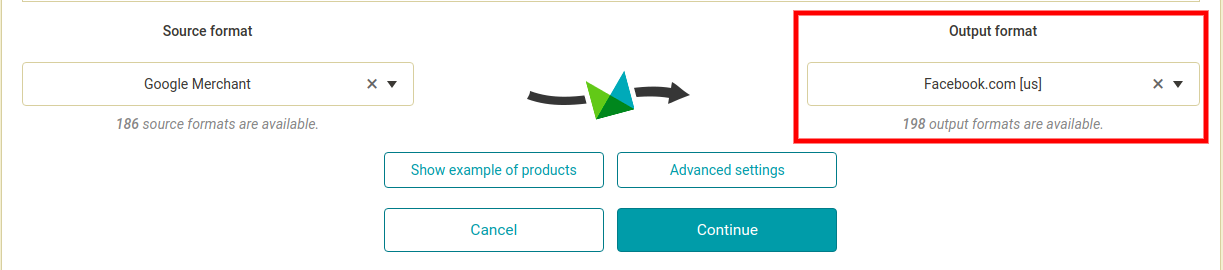
When finished click **Continue** again to get to additional settings (image 5). You can **choose** which **export format** you want to create (choose from the list on the right — output format). To finish click **Continue**.
[  ](https://www.mergado.com/sites/default/files/perm/paragraph-image/choosedesiredoutputformat.png)
Now you have created an export and you get to an export **overview page**. Here all your exports for different channels are listed. Note that from one source xml file you can **create unlimited number** of output exports. Just repeat the above procedure.
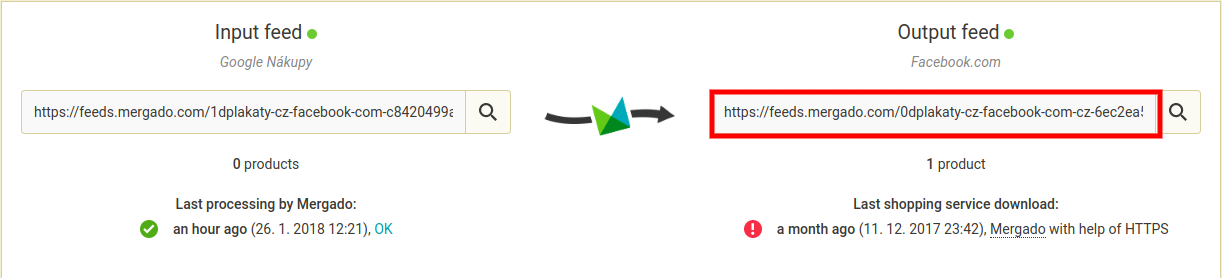
You can now proceed to **editing the export feed** by clicking the export name. Once you have finished editing and optimizing your product data, you want to **copy and paste** the URL address of the optimized output feed into a respective channel (e.g. facebook, google shopping, glami etc.). To find the URL address of the output XML, go to **Summary** page of export and scroll down to the bottom of the Summary page. There you can find both the source XML feed address as well as the **output feed address** (image 6). You can copy the link of the output feed and paste where needed.
[  ](https://www.mergado.com/sites/default/files/perm/paragraph-image/urladdressofyouroutputfeed.png)
- [ MERGADO ](https://www.mergado.com/tag/mergado)
[  ](https://www.mergado.com/blog/radim-zhor)### [ Radim Zhoř ](https://www.mergado.com/blog/radim-zhor)
- He has several years of experience in e‑commerce.
- He works as a Business Development Specialist at Mergado, where he helps to market the Mergado product management tool.
## What you *might be interested in next*
[ 
### How We Migrated an E‑Shop from Shoptet to Shopify with Mergado: A Complete Migration Without Data Loss
](https://www.mergado.com/blog/how-we-migrated-e-shop-shoptet-shopify-mergado-complete-migration-without-data-loss)
[ 
### How to open large XML file
](https://www.mergado.com/blog/how-to-open-large-xml-file)
[ 
### Introducing smart value insertion. It will speed up the creation of bulk rules
](https://www.mergado.com/blog/smart-value-insertion)
## Don’t miss *anything*
Sign up for our newsletter
By logging in, you agree that we will process your data by the [terms of personal data protection](https://www.mergado.com/cookies).
Thank you, you have successfully joined our subscriber's list.
function ml_webform_success_5807248() {
var r = ml_jQuery || jQuery
r('.ml-subscribe-form-5807248 .row-success').show(), r('.ml-subscribe-form-5807248 .row-form').hide()
}