- [Case Studies](https://www.mergado.com/category/case-studies)
- [eCommerce tips](https://www.mergado.com/category/ecommerce-tips)
- [Online Store Solutions and Platforms](https://www.mergado.com/category/online-store-solutions-and-platforms)
- [Mergado Pack](https://www.mergado.com/category/mergado-pack)
- [Mergado tips](https://www.mergado.com/category/mergado-tips)
- [Mergado News](https://www.mergado.com/category/mergado-news)
- [eCommerce News](https://www.mergado.com/category/ecommerce-news)
- [How to use Mergado](https://www.mergado.com/category/how-to-use-mergado)
- [Interviews with e‑commerce gurus](https://www.mergado.com/category/interviews-e-commerce-gurus)
- [Extensions](https://www.mergado.com/category/apps-bidding-image-marketing-and-more)
- [Expansion with Mergado](https://www.mergado.com/category/expansion-with-mergado)
- [Mergado Lifestyle](https://www.mergado.com/category/mergado-lifestyle)
1. [ Home ](https://www.mergado.com/)
2. [ Mergado Blog ](https://www.mergado.com/blog)
3. [ Case Studies ](https://www.mergado.com/category/case-studies)
4. **Speed up the import and export of data in Mergado. Using Google Sheets**
# **Speed up the import and export of data in Mergado. Using Google Sheets**
[  Lukáš Horák ](https://www.mergado.com/blog/lukas-horak) [Case Studies](https://www.mergado.com/category/case-studies) , [How to use Mergado](https://www.mergado.com/category/how-to-use-mergado)
20. 11. 2020
2 minutes read
The goal of every e‑shopper and marketer is to **speed up the work** of setting up advertising. In Mergado, in addition to the usual tasks, you can now **reduce the time of data import and export by using** [Google Sheets](https://www.google.com/intl/cs_cz/sheets/about/). Let’s show you how to use this function.
function tableOfContents() {
return {
headings_menu: [],
heading_active: '', // Added to track the active section
shouldBeSticky: false,
generateToC() {
const headings = document.querySelectorAll('.js-article-full-headings h2, .js-article-full-headings h3');
let headingMap = {};
headings.forEach((heading) => { // Use an arrow function to maintain `this` context
// Normalize heading text to remove diacritics, then replace non-alphanumeric characters with dashes
var normalizedText = heading.textContent.normalize("NFD").replace(/[\u0300-\u036f]/g, ""); // Remove diacritics
var id = heading.id ? heading.id : normalizedText.trim().toLowerCase()
.split(' ').join('-').replace(/[^a-z0-9\-]/ig, ''); // Updated regex to replace non-alphanumeric characters
headingMap[id] = headingMap[id] !== undefined ? ++headingMap[id] : 0;
// Use the updated `id` with diacritics removed for the heading id and the TOC
const finalId = headingMap[id] ? `${id}-${headingMap[id]}` : id;
this.headings_menu.push({
id: finalId,
title: heading.textContent,
level: heading.tagName.toLowerCase(), // Track heading level
active: false, // Initially set active to false
});
heading.id = finalId;
});
},
checkStickyNeeded() {
const ul = this.$el.querySelector('ul');
if (ul) {
this.shouldBeSticky = ul.scrollHeight < window.innerHeight;
}
},
setActiveHeading() {
// disabled not working with active state on click
// add @scroll.window="setActiveHeading()" to the parent div
// const headings = document.querySelectorAll('.js-article-full-headings h2');
// let activeHeading = '';
// let closestHeadingDistance = Infinity;
// headings.forEach((heading) => {
// const rect = heading.getBoundingClientRect();
// const offset = rect.top - window.innerHeight / 2; // Consider heading in the middle of the screen as active
// if (offset < 0 && Math.abs(offset) < closestHeadingDistance) {
// activeHeading = heading.id;
// closestHeadingDistance = Math.abs(offset);
// }
// });
// // Update the active state in headings_menu
// if (activeHeading !== this.heading_active) {
// this.headings_menu = this.headings_menu.map(item => ({
// ...item,
// active: item.id === activeHeading,
// }));
// this.heading_active = activeHeading;
// }
},
setActiveItem(clickedId) {
this.headings_menu.forEach(item => {
item.active = (item.id === clickedId);
});
this.heading_active = clickedId; // Optionally update the heading_active property if used
},
};
}
1. —
The goal of every e‑shopper and marketer is to **speed up the work** of setting up advertising. In Mergado, in addition to the usual tasks, you can now **reduce the time of data import and export by using** [Google Sheets](https://www.google.com/intl/cs_cz/sheets/about/). Let’s show you how to use this function.
## Google Sheets is a convenient tool for catalog management
Google Sheets is a popular tool used **to create spreadsheets**. With it, you can **not only monitor** data from [Mergado](https://www.google.com/intl/cs_cz/sheets/about/), **filter** it, or **share** it with team members but also **speed** **up** the import and export of data in Mergado thanks to the [newly added feature](https://forum.mergado.com/t/news-and-releases-in-mergado/212/37). Let’s see how you set everything up.
### Export data to Google Sheets
**Method:**
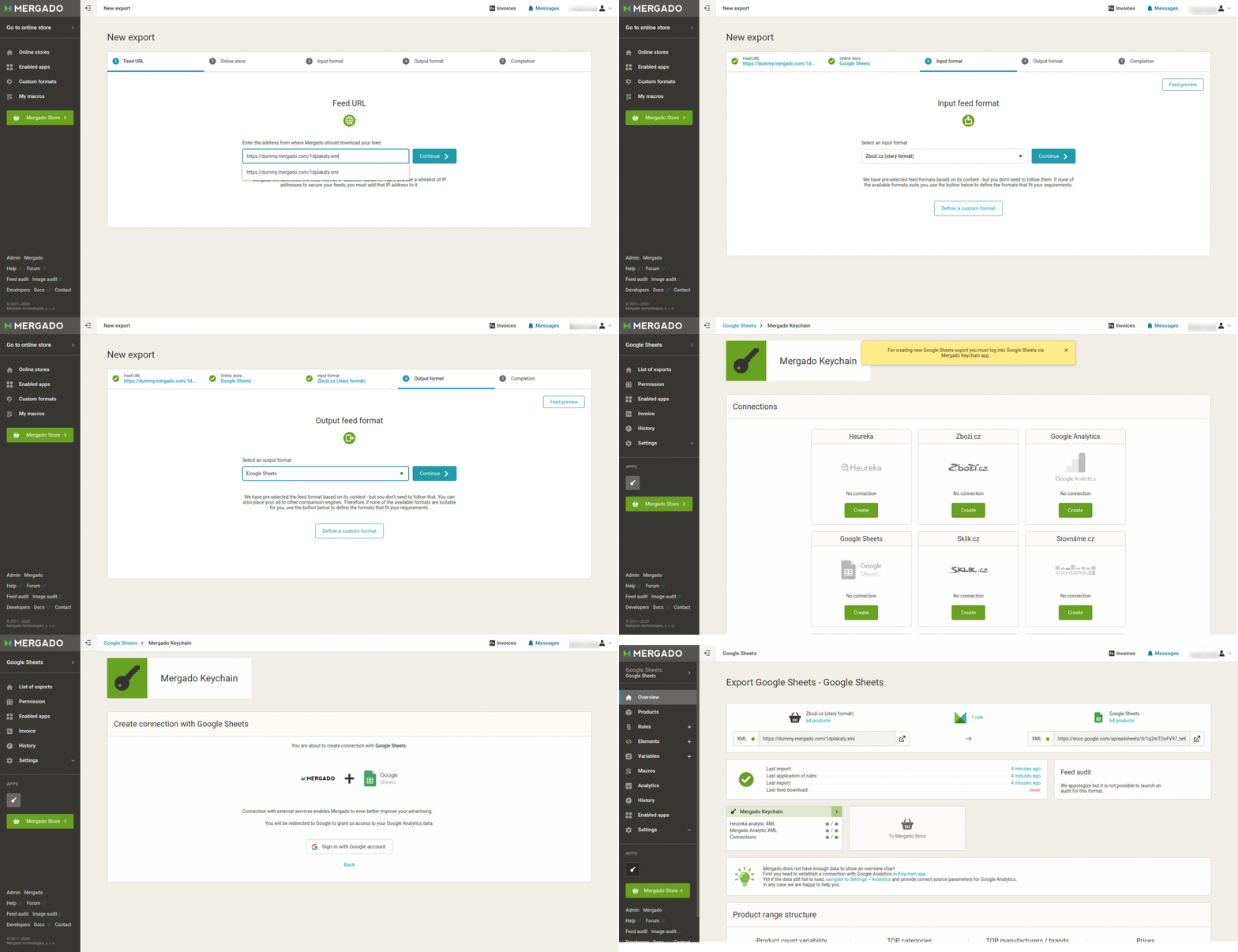
1. Export to Google Sheets takes place in the standard way **via New Export**.
2. **Enter the URL of the feed you want** to export in the address.
3. After downloading and analyzing the feed, either **select** an existing online store **or** **create** a new one.
4. Then **select the input format** of the feed. Mergado can recognize it, but you can also choose it manually and define it if necessary.
5. Select **Google Sheets as the output format**.
6. **Complete** the export.
7. Mergado will **notify** you if you do not have a connection set up in the [Keychain](https://store.mergado.com/detail/mergadokeychain/#about) application.
8. **Create a connection** by signing in to your Google account.
9. After a successful connection, you will be **redirected** back to creating a new export.
10. **Finish** the creation.
11. The resulting export is **available** on your Google drive under the name *Your\_online\_store\_input format\_project id*. The link is available in Mergado.
[  ](https://www.mergado.com/sites/default/files/perm/paragraph-image/export-sheets-eng.gif)
- Save your Google Account login to both the online store and the user.
- If a user tries to create a new store connection with a Google account and already has another store connected, the existing connection is going to be used.
- You can also create connections in the Keychain in advance.
### Import data from Google Sheets
**What you should know:**
- The table **must not contain data outside the named columns**.
- Changes made to Google Sheets **will not take effect in Mergado until they are regenerated**.
- Google Sheets is **not considered to be a format**. It is therefore not possible to identify it at the input. The table can be of **any format**.
**Method:**
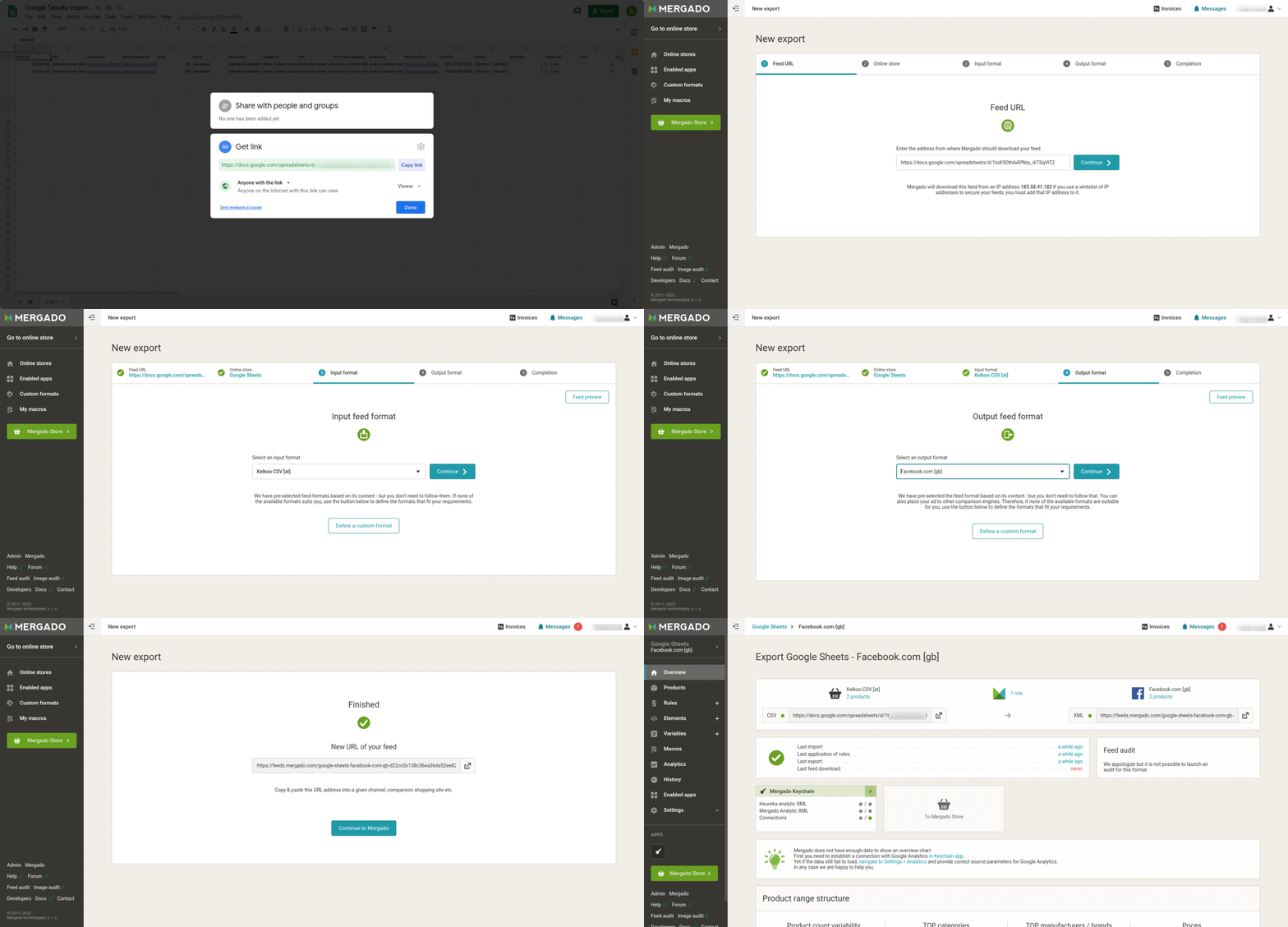
1. Before entering into the Mergado interface, you must **set up a table for sharing** (path: *Google — Get link — All users who have the link — Reader / Editor*).
2. Import from Google Sheets takes place in the standard way **via New Export**. Enter the **URL of the spreadsheet** into the address.
3. **Select** either an existing online store or create a new one.
4. **Select** the format that is included in the spreadsheet.
5. **Select** the output format.
6. **Finish** creating the export.
[  ](https://www.mergado.com/sites/default/files/perm/paragraph-image/import-sheets-eng.gif)
And that’s all. Try this way to speed up export and import. Mergado offers **many ways** to work with feeds in bulk and automatically.
### **Read more:**
[ 
### MASTER PROMPT TEMPLATE FOR ECOMMERCE
](https://www.mergado.com/blog/master-prompt-eshopy-b2c)
[ 
### How Feed Optimization Unlocked Meta Ads Performance without Increasing Ad Spend
](https://www.mergado.com/blog/feed-optimization-for-meta-ads)
[ 
### How to Sell Successfully on idealo
](https://www.mergado.com/blog/successful-sale-on-idealo)
[  ](https://www.mergado.com/blog/lukas-horak)### [ Lukáš Horák ](https://www.mergado.com/blog/lukas-horak)
Lukáš takes care of most of the Czech and English communication in Mergado. Through blogs, e‑mail, and social networks, he regularly supplies readers with e‑commerce news and news and tips from Mergado. In his time off, he enjoys simple things like badminton, digging the hidden gems of the 80’s, and seafood served with red wine.
## What you *might be interested in next*
[ 
### How Feed Optimization Unlocked Meta Ads Performance without Increasing Ad Spend
](https://www.mergado.com/blog/feed-optimization-for-meta-ads)
[ 
### The Real Impact of Visual Product Image Optimization on Meta Campaign Performance
](https://www.mergado.com/blog/visuals-for-meta-campaigns)
[ 
### How We Migrated an E‑Shop from Shoptet to Shopify with Mergado: A Complete Migration Without Data Loss
](https://www.mergado.com/blog/how-we-migrated-e-shop-shoptet-shopify-mergado-complete-migration-without-data-loss)
## Don’t miss *anything*
Sign up for our newsletter
By logging in, you agree that we will process your data by the [terms of personal data protection](https://www.mergado.com/cookies).
Thank you, you have successfully joined our subscriber's list.
function ml_webform_success_5807248() {
var r = ml_jQuery || jQuery
r('.ml-subscribe-form-5807248 .row-success').show(), r('.ml-subscribe-form-5807248 .row-form').hide()
}