- [Case Studies](https://www.mergado.com/category/case-studies)
- [eCommerce tips](https://www.mergado.com/category/ecommerce-tips)
- [Online Store Solutions and Platforms](https://www.mergado.com/category/online-store-solutions-and-platforms)
- [Mergado Pack](https://www.mergado.com/category/mergado-pack)
- [Mergado tips](https://www.mergado.com/category/mergado-tips)
- [Mergado News](https://www.mergado.com/category/mergado-news)
- [eCommerce News](https://www.mergado.com/category/ecommerce-news)
- [How to use Mergado](https://www.mergado.com/category/how-to-use-mergado)
- [Interviews with e‑commerce gurus](https://www.mergado.com/category/interviews-e-commerce-gurus)
- [Extensions](https://www.mergado.com/category/apps-bidding-image-marketing-and-more)
- [Expansion with Mergado](https://www.mergado.com/category/expansion-with-mergado)
- [Mergado Lifestyle](https://www.mergado.com/category/mergado-lifestyle)
1. [ Home ](https://www.mergado.com/)
2. [ Mergado Blog ](https://www.mergado.com/blog)
3. [ eCommerce News ](https://www.mergado.com/category/ecommerce-news)
4. **How to create campaign and upload products to Kaufland marketplace**
# **How to create campaign and upload products to Kaufland marketplace**
[  Veronika Kusalíková ](https://www.mergado.com/blog/veronika-kusalikova) [eCommerce News](https://www.mergado.com/category/ecommerce-news)
27. 6. 2024
4 minutes read
Are you going to **advertise your products** on the *Kaufland marketplace*? We have a step-by-step **guide on how to upload your products** to Kaufland and create your **first campaign**.
function tableOfContents() {
return {
headings_menu: [],
heading_active: '', // Added to track the active section
shouldBeSticky: false,
generateToC() {
const headings = document.querySelectorAll('.js-article-full-headings h2, .js-article-full-headings h3');
let headingMap = {};
headings.forEach((heading) => { // Use an arrow function to maintain `this` context
// Normalize heading text to remove diacritics, then replace non-alphanumeric characters with dashes
var normalizedText = heading.textContent.normalize("NFD").replace(/[\u0300-\u036f]/g, ""); // Remove diacritics
var id = heading.id ? heading.id : normalizedText.trim().toLowerCase()
.split(' ').join('-').replace(/[^a-z0-9\-]/ig, ''); // Updated regex to replace non-alphanumeric characters
headingMap[id] = headingMap[id] !== undefined ? ++headingMap[id] : 0;
// Use the updated `id` with diacritics removed for the heading id and the TOC
const finalId = headingMap[id] ? `${id}-${headingMap[id]}` : id;
this.headings_menu.push({
id: finalId,
title: heading.textContent,
level: heading.tagName.toLowerCase(), // Track heading level
active: false, // Initially set active to false
});
heading.id = finalId;
});
},
checkStickyNeeded() {
const ul = this.$el.querySelector('ul');
if (ul) {
this.shouldBeSticky = ul.scrollHeight < window.innerHeight;
}
},
setActiveHeading() {
// disabled not working with active state on click
// add @scroll.window="setActiveHeading()" to the parent div
// const headings = document.querySelectorAll('.js-article-full-headings h2');
// let activeHeading = '';
// let closestHeadingDistance = Infinity;
// headings.forEach((heading) => {
// const rect = heading.getBoundingClientRect();
// const offset = rect.top - window.innerHeight / 2; // Consider heading in the middle of the screen as active
// if (offset < 0 && Math.abs(offset) < closestHeadingDistance) {
// activeHeading = heading.id;
// closestHeadingDistance = Math.abs(offset);
// }
// });
// // Update the active state in headings_menu
// if (activeHeading !== this.heading_active) {
// this.headings_menu = this.headings_menu.map(item => ({
// ...item,
// active: item.id === activeHeading,
// }));
// this.heading_active = activeHeading;
// }
},
setActiveItem(clickedId) {
this.headings_menu.forEach(item => {
item.active = (item.id === clickedId);
});
this.heading_active = clickedId; // Optionally update the heading_active property if used
},
};
}
1. —
First, you need to create and set up your Kaufland Global Marketplace account correctly (**one registration is sufficient** for [Kaufland.cz](https://www.kaufland.cz/), [Kaufland.de](http://kaufland.de/) and [Kaufland.sk](https://www.kaufland.sk/)). Detailed information about registering on the Kaufland marketplace can be found here: K[aufland.cz // Seller University](https://www.kaufland.de/i/seller-university/en/registration/).
[  ](https://www.mergado.com/sites/default/files/perm/image/kaufland_create_connection.png)
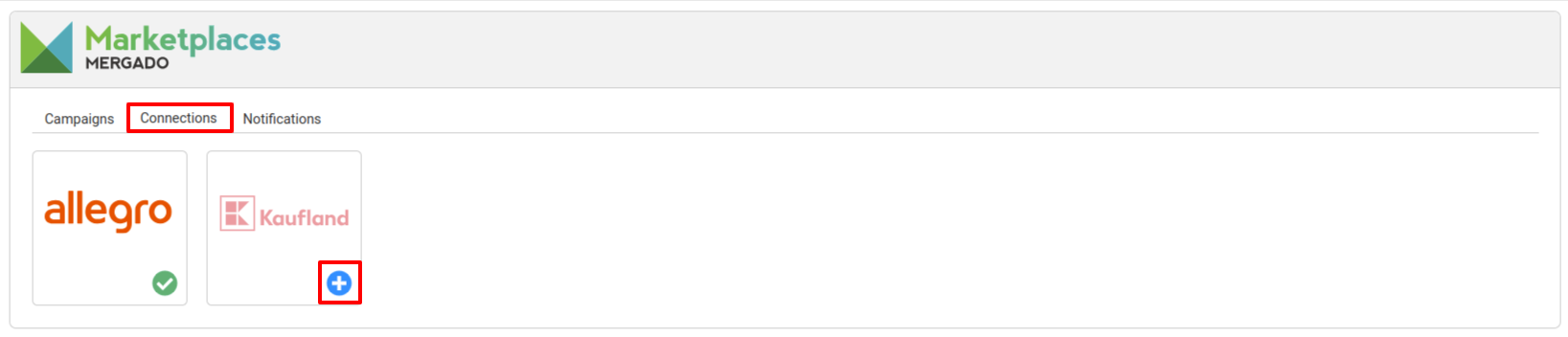
First, make sure you have the [Mergado Marketplaces](https://store.mergado.com/detail/ordelogyproducts/#about) app activated. In the Marketplaces app, you first need to go to the “Connections” tab and then click on the blue icon to add a connection at the Kaufland marketplace. The “Connection Detail” tab will open.
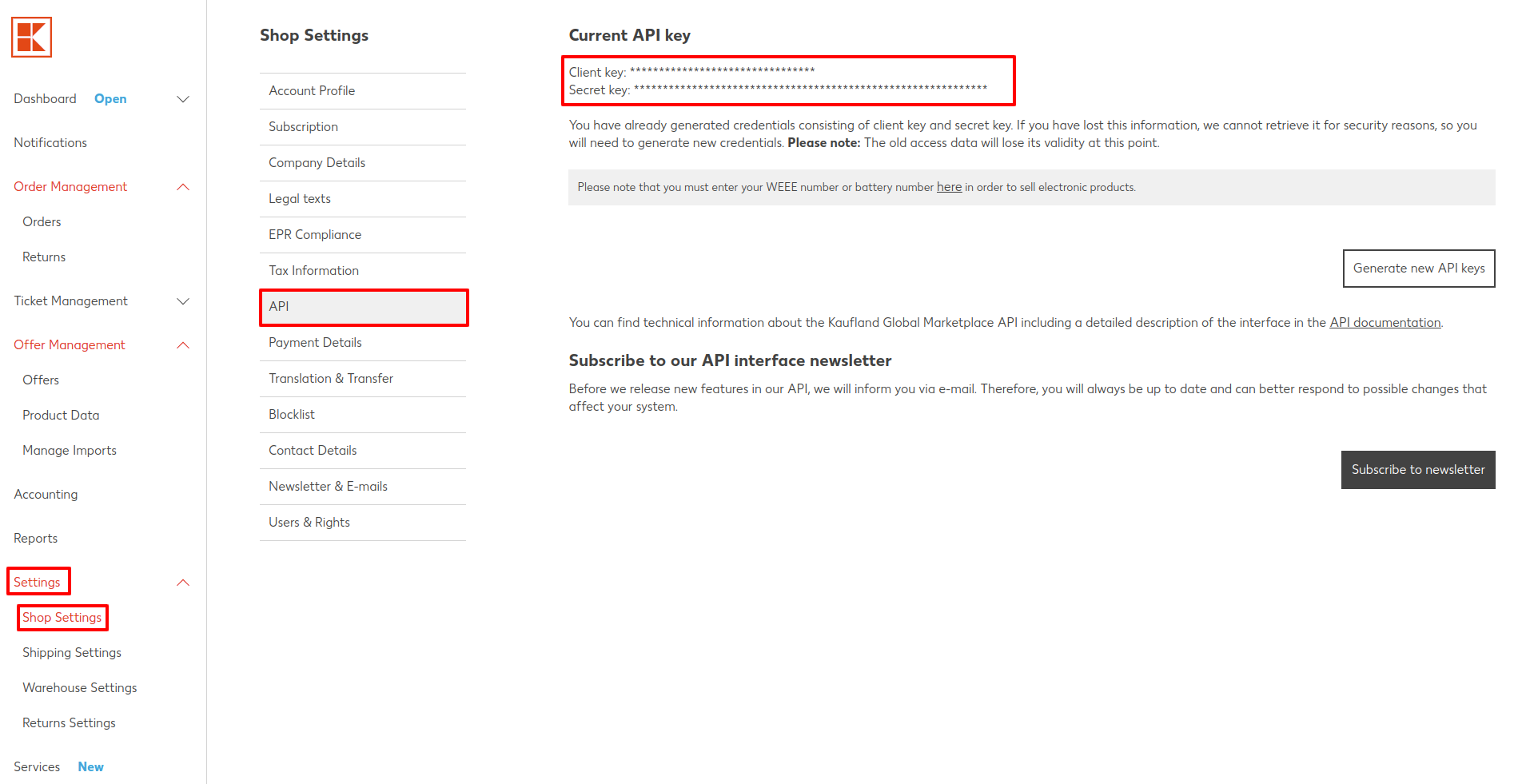
On the “Connection Detail” tab you need to enter the **API keys** which you can find in your administration directly on the Kaufland marketplace website. Here you go to “Settings” → “Store Settings” → “API”. Your API keys (“Client Key” and “Secret Key”) are listed at the top. If there are none here yet, simply generate new ones. **Save the keys safely after generating them, you will only see them after they have been generated — after that you will not be able to view them again.**
[  ](https://www.mergado.com/sites/default/files/perm/image/kaufland_settings.png)
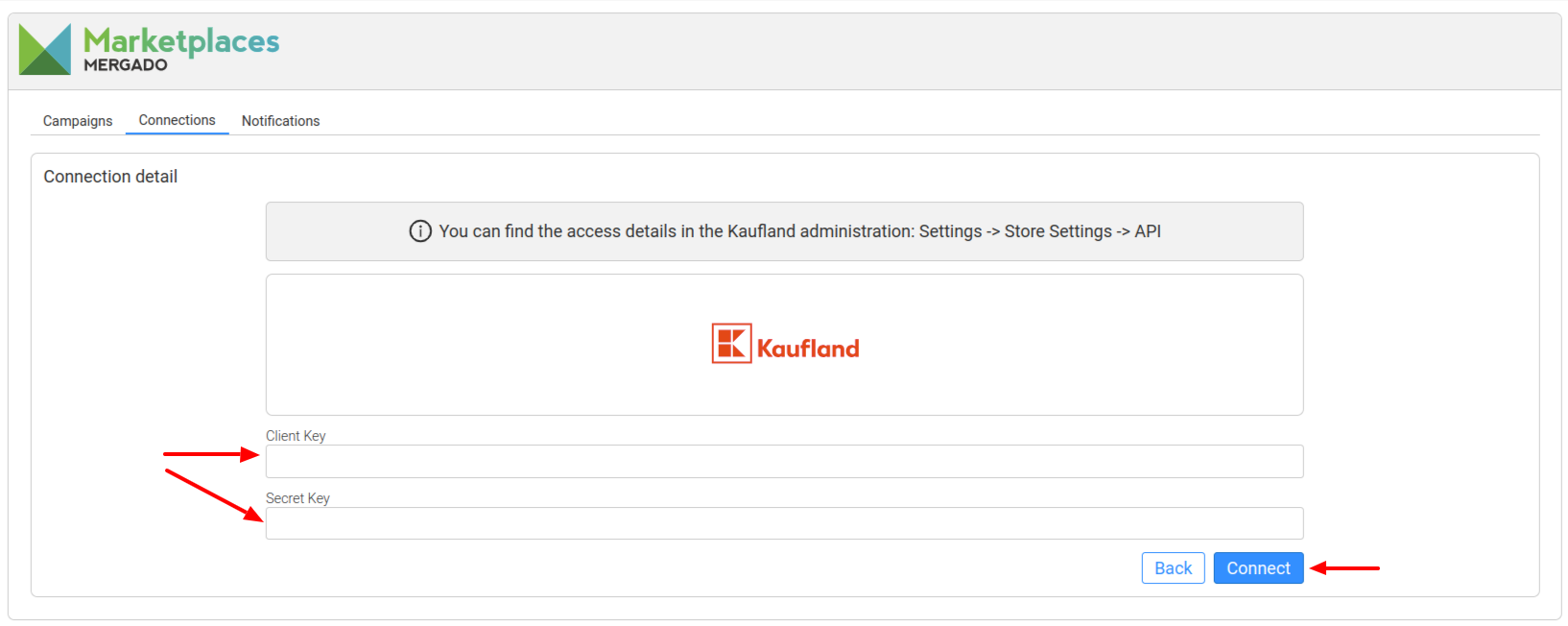
Then **enter these keys** into the Mergado Marketplaces app under the “Connection Details” tab, see above, and proceed with the connect button — the connection should now be active.
[  ](https://www.mergado.com/sites/default/files/perm/image/kaufland_marketplaces_key.png)
If you re-generate keys in Kaufland administration and get new ones, **the original ones will lose their validity**. So if you have old keys stored in Marketplaces and you generate new ones in Kaufland Administration, **the connection will no longer work**.
## Creating campaign in the app
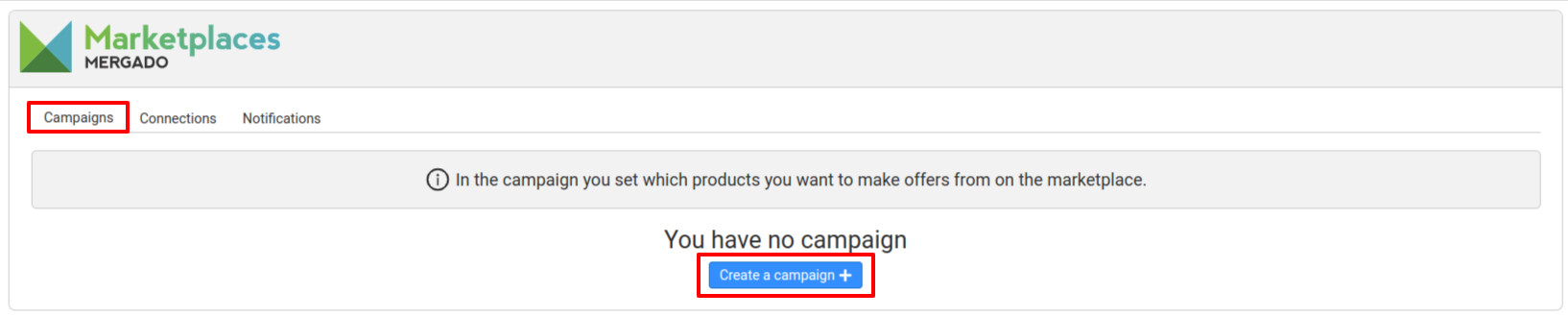
In the menu, go to the “Campaigns” tab and then click on the “Create Campaign” button. You will be greeted by a campaign creation wizard with five steps.
[  ](https://www.mergado.com/sites/default/files/perm/image/kaufland_marketplaces_create-campaign.png)
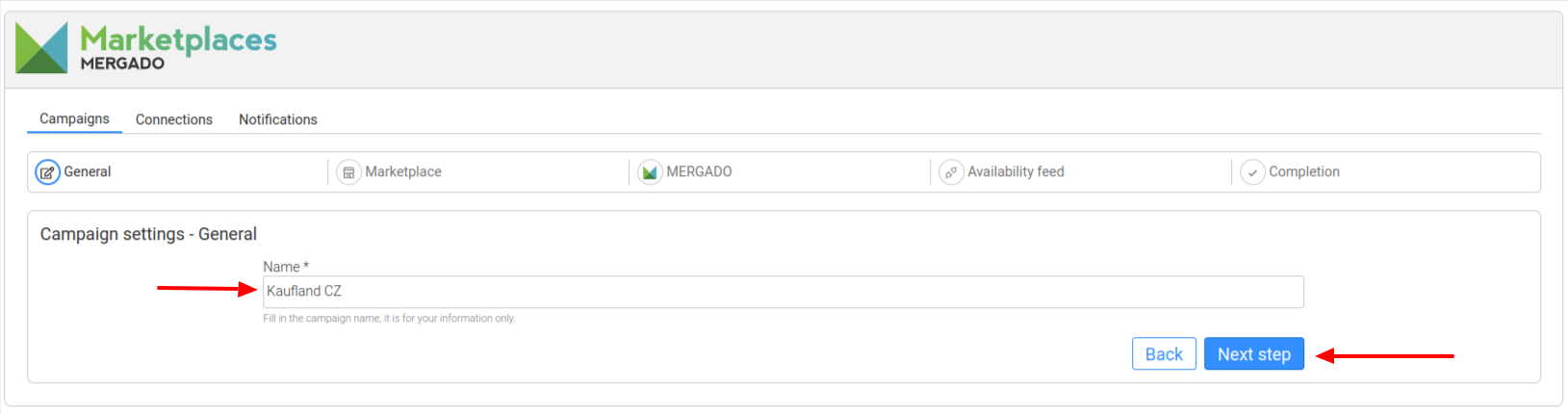
1. First step — **General** — is to fill in the campaign name. The name can be any name you want. However, we recommend one that makes it clear at a glance what the campaign is about.
[  ](https://www.mergado.com/sites/default/files/perm/image/kaufland_marketplaces_setting-campaign.png)
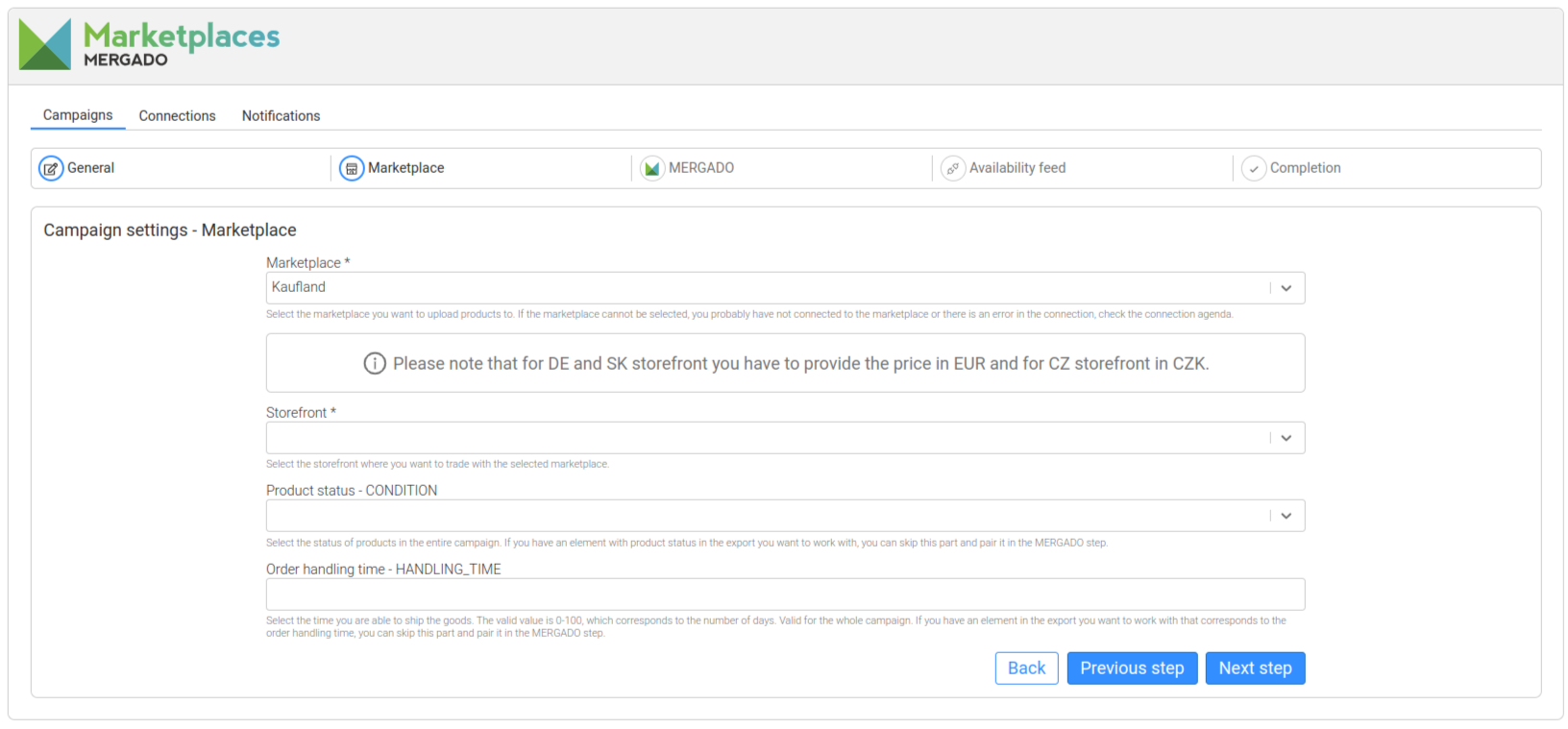
2. In the next step — **Marketplace** — you need to select which marketplace you want to upload the offers to. So we choose “Kaufland”. Then a field for selecting “Storefront” (the country in which the offers will be sold — see [Kaufland.cz](https://www.kaufland.cz/) / [Kaufland.de](http://kaufland.de/) / [Kaufland.sk](https://www.kaufland.sk/)) will open. You can then select the **CONDITION and HANDLING\_TIME** value for all products in the campaign at once (see the label next to the field selection). Then proceed again with the “Next step” button.
[  ](https://www.mergado.com/sites/default/files/perm/image/kaufland_marketplaces_setting-storefront.png)
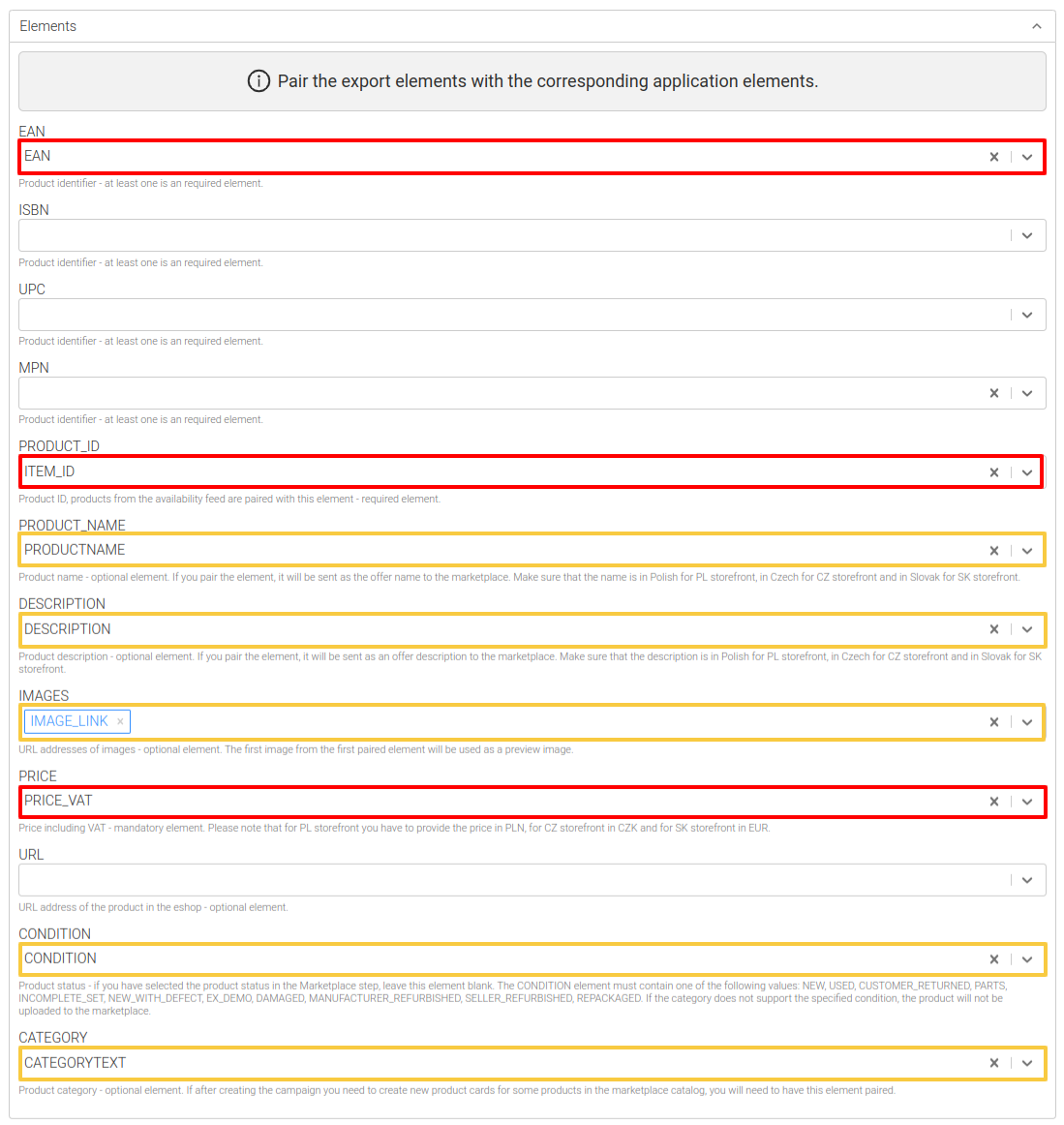
3. In the next step — **Mergado** — you need to select from which Mergado *project* and *query* you want to upload products to the marketplace. This will then open the section for mapping elements from the selected *project* in Mergado to elements in the Marketplace app. It is obligatory to map the elements **EAN, PRODUCT\_ID and PRICE**.
Mapping is usually pre-filled, but it may not be correct. Check if you are mapping the correct elements — i.e. the ones that contain the required values in the Mergado project (these values are then uploaded to the marketplace). The **element mapped to PRODUCT\_ID must be the one that is used to match products from the availability feed.**
If you selected a value for CONDITION and HANDLING\_TIME in the previous Marketplace step, do not pair these elements here.
[  ](https://www.mergado.com/sites/default/files/perm/image/kaufland_marketplaces_pairing.png)
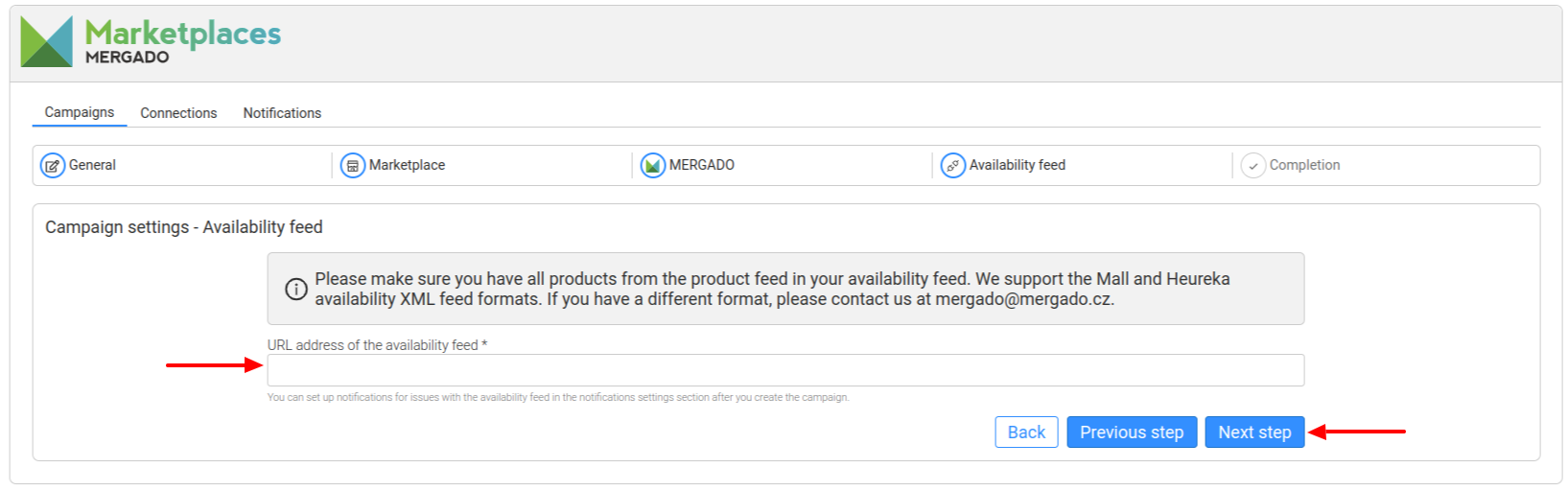
4. In the next step — **Availability feed** — insert the URL of the availability feed in Heureka or Mall format. After clicking on the “Next” button, the availability feed will be checked. If there are any missing products from the selected query, the application will inform you about it. If you get the information that all products are missing, you have probably entered a different availability feed or you have incorrectly mapped the PRODUCT\_ID element in the **Mergado.** step.\*\* Products that are in the selection but missing in the availability feed will not be uploaded to the marketplace. If your availability feed is somehow restricted you need to remove this restriction.
[  ](https://www.mergado.com/sites/default/files/perm/image/kaufland_marketplaces_availability_feed.png)
5. The last step **- Completion -** is just a final summary. Make sure you have everything filled out correctly and correct the information if necessary. Finish creating your campaign with the “Save” button on the bottom right. This will create the campaign and the offers will automatically start uploading to the Kaufland marketplace. This process may take some time.
- [ Kaufland Global Marketplace ](https://www.mergado.com/tag/kaufland-global-marketplace)
[  ](https://www.mergado.com/blog/veronika-kusalikova)### [ Veronika Kusalíková ](https://www.mergado.com/blog/veronika-kusalikova)
A copywriter and content specialist Veronika is in charge of the English content and communication. She spreads the word about Mergado and e‑commerce on our blog and social media. After she shuts her computer down, you can catch her knitting a sweater, strolling around second-hand shops or traveling.
## What you *might be interested in next*
[ 
### How to Sell Successfully on idealo
](https://www.mergado.com/blog/successful-sale-on-idealo)
[ 
### More regulation in e‑commerce: what is EAA and what does it mean for your online business?
](https://www.mergado.com/blog/bfsg-european-accessibility-act)
[ 
### Introducing smart value insertion. It will speed up the creation of bulk rules
](https://www.mergado.com/blog/smart-value-insertion)
## Don’t miss *anything*
Sign up for our newsletter
By logging in, you agree that we will process your data by the [terms of personal data protection](https://www.mergado.com/cookies).
Thank you, you have successfully joined our subscriber's list.
function ml_webform_success_5807248() {
var r = ml_jQuery || jQuery
r('.ml-subscribe-form-5807248 .row-success').show(), r('.ml-subscribe-form-5807248 .row-form').hide()
}