- [Case Studies](https://www.mergado.com/category/case-studies)
- [eCommerce tips](https://www.mergado.com/category/ecommerce-tips)
- [Online Store Solutions and Platforms](https://www.mergado.com/category/online-store-solutions-and-platforms)
- [Mergado Pack](https://www.mergado.com/category/mergado-pack)
- [Mergado tips](https://www.mergado.com/category/mergado-tips)
- [Mergado News](https://www.mergado.com/category/mergado-news)
- [eCommerce News](https://www.mergado.com/category/ecommerce-news)
- [How to use Mergado](https://www.mergado.com/category/how-to-use-mergado)
- [Interviews with e‑commerce gurus](https://www.mergado.com/category/interviews-e-commerce-gurus)
- [Extensions](https://www.mergado.com/category/apps-bidding-image-marketing-and-more)
- [Expansion with Mergado](https://www.mergado.com/category/expansion-with-mergado)
- [Mergado Lifestyle](https://www.mergado.com/category/mergado-lifestyle)
1. [ Home ](https://www.mergado.com/)
2. [ Mergado Blog ](https://www.mergado.com/blog)
3. [ Case Studies ](https://www.mergado.com/category/case-studies)
4. **7 common Google Shopping feed flaws and how to fix them in Mergado**
# **7 common Google Shopping feed flaws and how to fix them in Mergado**
[  Irena Prouzová ](https://www.mergado.com/blog/irena-prouzova) [Case Studies](https://www.mergado.com/category/case-studies)
1. 7. 2021
5 minutes read

Google Shopping is **one of the most widely used** product feed formats in Mergado. In partnership with [Proficio](https://proficiodigital.com), a Google Certified Partner, we’ve described the **seven most common issues** you may encounter at the Google Merchant Diagnostic Center.
function tableOfContents() {
return {
headings_menu: [],
heading_active: '', // Added to track the active section
shouldBeSticky: false,
generateToC() {
const headings = document.querySelectorAll('.js-article-full-headings h2, .js-article-full-headings h3');
let headingMap = {};
headings.forEach((heading) => { // Use an arrow function to maintain `this` context
// Normalize heading text to remove diacritics, then replace non-alphanumeric characters with dashes
var normalizedText = heading.textContent.normalize("NFD").replace(/[\u0300-\u036f]/g, ""); // Remove diacritics
var id = heading.id ? heading.id : normalizedText.trim().toLowerCase()
.split(' ').join('-').replace(/[^a-z0-9\-]/ig, ''); // Updated regex to replace non-alphanumeric characters
headingMap[id] = headingMap[id] !== undefined ? ++headingMap[id] : 0;
// Use the updated `id` with diacritics removed for the heading id and the TOC
const finalId = headingMap[id] ? `${id}-${headingMap[id]}` : id;
this.headings_menu.push({
id: finalId,
title: heading.textContent,
level: heading.tagName.toLowerCase(), // Track heading level
active: false, // Initially set active to false
});
heading.id = finalId;
});
},
checkStickyNeeded() {
const ul = this.$el.querySelector('ul');
if (ul) {
this.shouldBeSticky = ul.scrollHeight < window.innerHeight;
}
},
setActiveHeading() {
// disabled not working with active state on click
// add @scroll.window="setActiveHeading()" to the parent div
// const headings = document.querySelectorAll('.js-article-full-headings h2');
// let activeHeading = '';
// let closestHeadingDistance = Infinity;
// headings.forEach((heading) => {
// const rect = heading.getBoundingClientRect();
// const offset = rect.top - window.innerHeight / 2; // Consider heading in the middle of the screen as active
// if (offset < 0 && Math.abs(offset) < closestHeadingDistance) {
// activeHeading = heading.id;
// closestHeadingDistance = Math.abs(offset);
// }
// });
// // Update the active state in headings_menu
// if (activeHeading !== this.heading_active) {
// this.headings_menu = this.headings_menu.map(item => ({
// ...item,
// active: item.id === activeHeading,
// }));
// this.heading_active = activeHeading;
// }
},
setActiveItem(clickedId) {
this.headings_menu.forEach(item => {
item.active = (item.id === clickedId);
});
this.heading_active = clickedId; // Optionally update the heading_active property if used
},
};
}
1. —
Google Shopping is **one of the most widely used** product feed formats in Mergado. In partnership with [Proficio](https://proficiodigital.com), a Google Certified Partner, we’ve described the **seven most common issues** you may encounter at the Google Merchant Diagnostic Center. We are also going to show you ways **how to fix them in Mergado**.
## 1. Category mapping
[Google Shopping](https://www.mergado.com/tag/google-shopping) has its **specific category tree**, which is the alpha and omega of the **successful product listing**. So mapping the correct categories will probably be **the first change** you need to make. Mergado knows Google categories. So you can map them correctly with a few clicks.
1\. In Mergado in Google Merchants Export, go to the *Rules* section and click *New Rule* (or use the keyboard shortcut [Alt + T](https://www.mergado.com/blog/use-keyboard-shortcuts-to-work-with-mergado)).
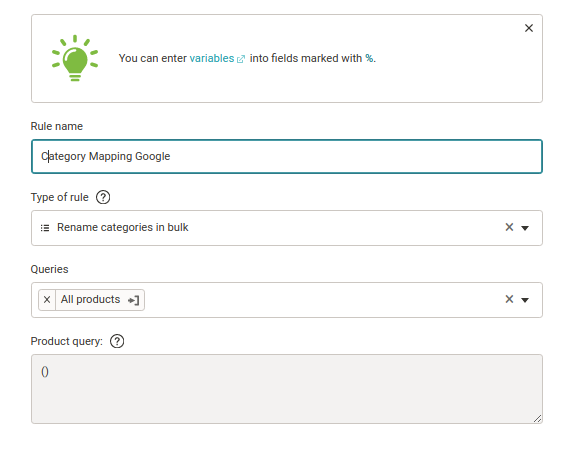
2\. **Name** the rule — for example, *Category as Mapping Google*, and then select the *Rename Categories in Bulk* rule that is specified for this type of editing. Apply it to all products.
[  ](https://www.mergado.com/sites/default/files/perm/paragraph-image/1-category-mapping-google.png)
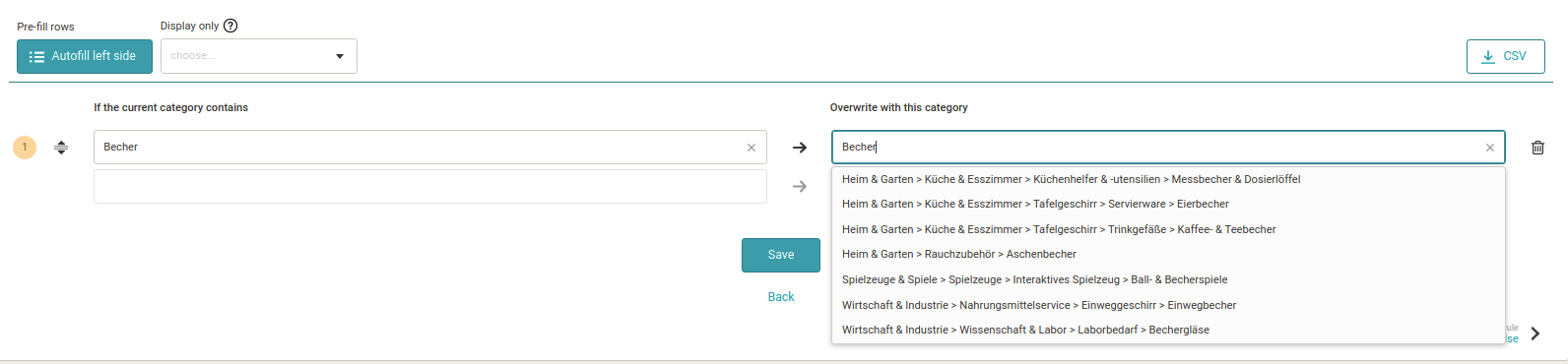
3\. The *Autofill left row* button automatically lists all the **categories** that your feed contains in the left column. Then use the insinuator in the column on the right to select the appropriate Google category. Finally, click *Create* to save the rule.
[  ](https://www.mergado.com/sites/default/files/perm/paragraph-image/2-overwrite.png)
4\. You can **return** to the created rule at any time and **edit** it on the *Rules* page.
## 2. Missing identifiers
The **BRAND, GTIN, and MPN** identifiers are used in the Google Merchant feed for correct product identification. Google requires **at least two of these three** identifiers for each product. If your products have only one or no identifier, you need to **add** the element g:identifier\_exists to each product and fill it with the value false (alternatively, the no value also works).
In Mergado, you can use the *Rewrite* rule for this type of feed edit.
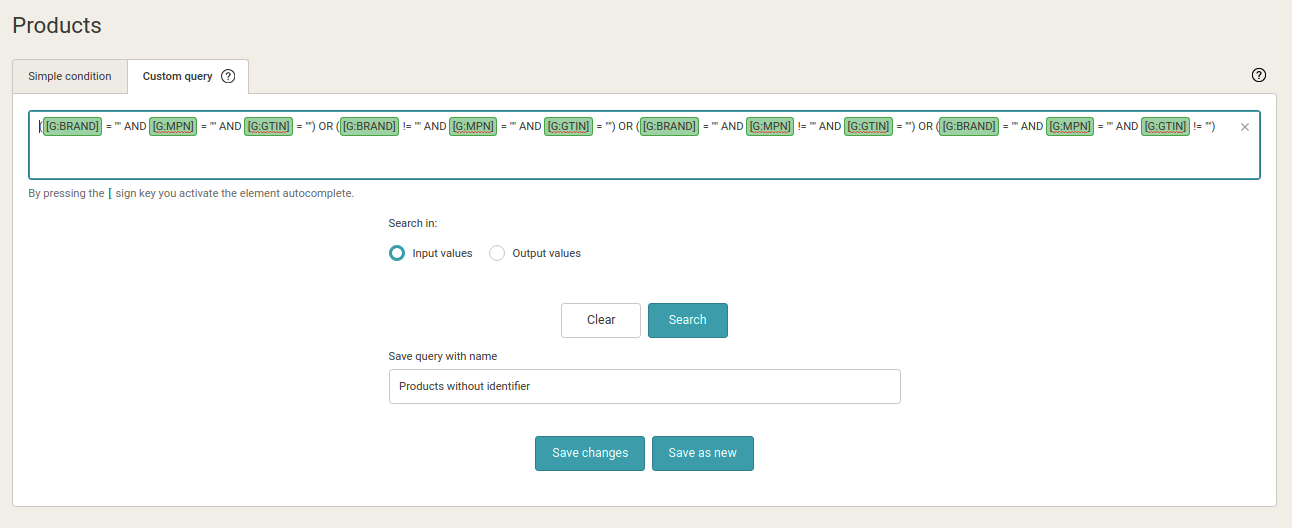
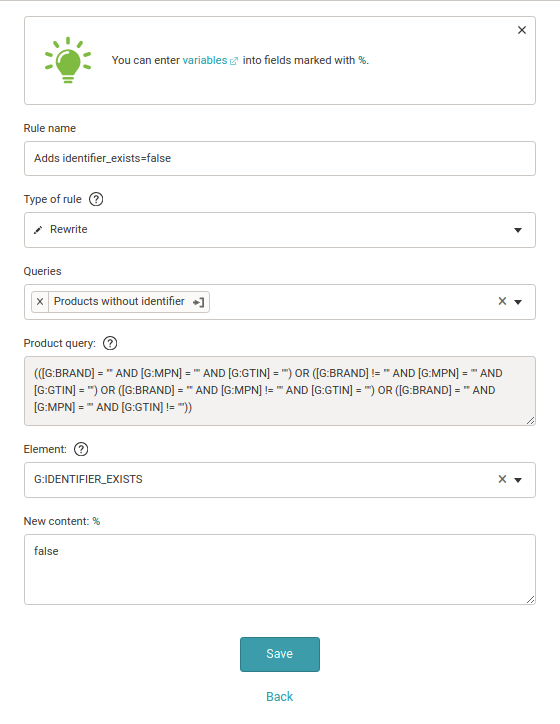
1\. First, in the *Products* tab, **define** **a product query** that contains products with only one or no identifier. In the *Custom Query* tab, you **define a set** of such products with the following expression: (\[G:BRAND\] = “” AND \[G:MPN\] = “” AND \[G:GTIN\] = “”) OR (\[G:BRAND\]! = “” AND \[G:MPN\] = “” AND \[G:GTIN\] = “”) OR (\[G:BRAND\] = “” AND \[G:MPN\]! = “” AND \[G:GTIN\] = “”) OR (\[G:BRAND\] = “” AND \[G:MPN\] = “” AND \[G:GTIN\]! = “”)
[  ](https://www.mergado.com/sites/default/files/perm/paragraph-image/3-product-query-selection.png)
2\. **Name and save** the product query. For example, under the name *Products* *without an identifier*. This query updates itself automatically, and Mergado keeps it up to date.
3\. Now go to the *Rules* tab and **create** a *New Rule*. You can call it *Adds identifier\_exists = false*. Select the *Rewrite* rule type and apply *Products without an identifier* to the product query. **Choose** the element you want to fill — in our case g:identifier\_exists and fill it with the false value.
[  ](https://www.mergado.com/sites/default/files/perm/paragraph-image/4-identifier.png)
4\. Now, all you have to do is **save** the rule by clicking *Create*.
5\. You have just filled in the missing identifiers.
## 3. Adding a currency to the product price
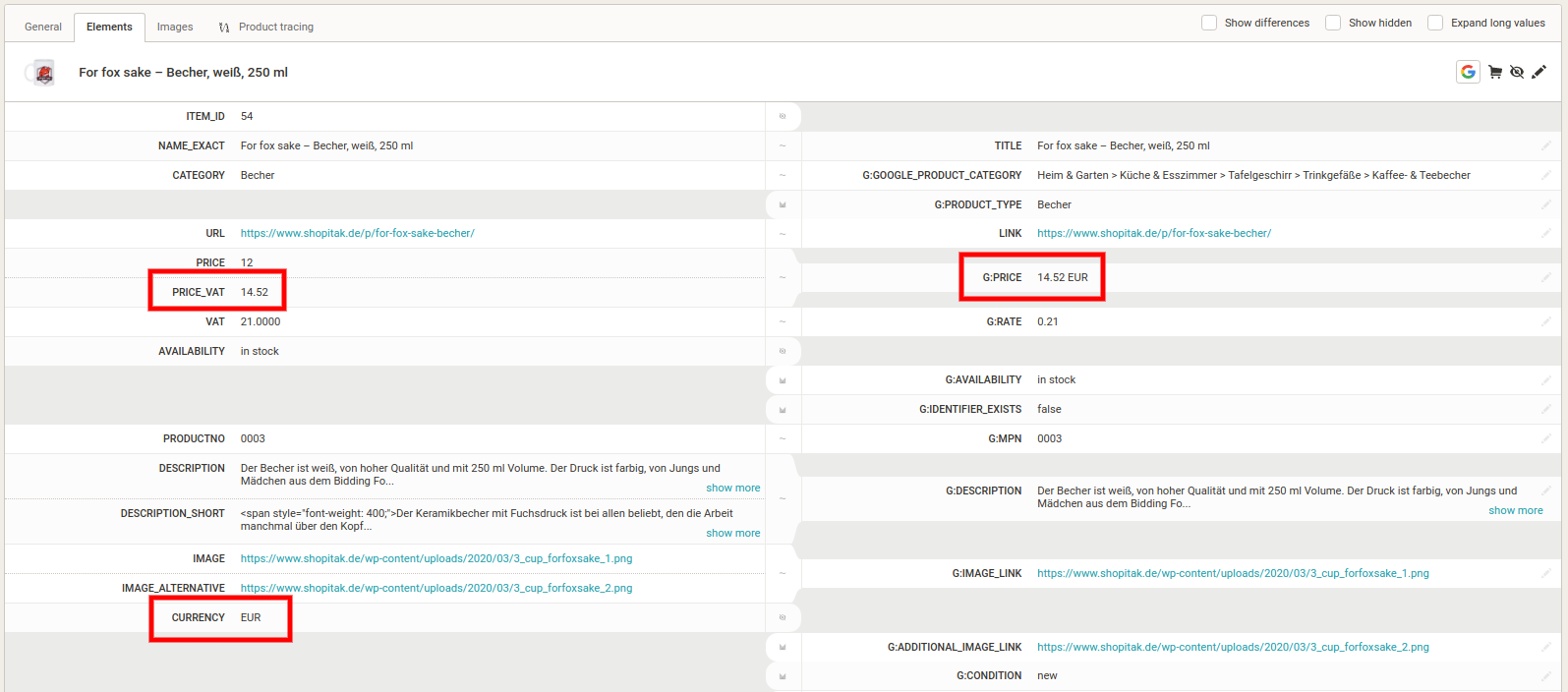
In the g:price element, Google requires both a **numeric** **value** and a **currency**. If you have the price of goods and currency in two different elements in the input feed, Mergado automatically **combines** these two variables into the g:price element when converting the feed to Google Merchants format. No further adjustments are required.
[  ](https://www.mergado.com/sites/default/files/perm/paragraph-image/5-elements.png)
If you later need to **remove or change** the currency for some reason, you can do so using the *Find and Replace* rule. You replace the character string corresponding to the currency abbreviation with an empty value or an abbreviation for another currency in the g:price element.
## 4. Minor image corrections
A common problem is the **relative URL of the image** in the IMG\_URL element. Of course, such an image will not load in Google Shopping. If you have product images stored on a local server and use only a relative URL, you need to edit it in Mergado. The solution is the *Find and Replace* rule. At the beginning of the relative URL, you add the domain URL of your online store.
We recommend the [Feed Image Editor](https://store.mergado.com/detail/feedimageeditor/#about) app for **advanced image editing**, including image auditing.
## 5. Minor price problems
Submitting prices to Google can sometimes be a hassle, especially if you have **more than one price** on the web. In Mergado, you can easily define which value from your original feed you want to send to the g:price attribute.
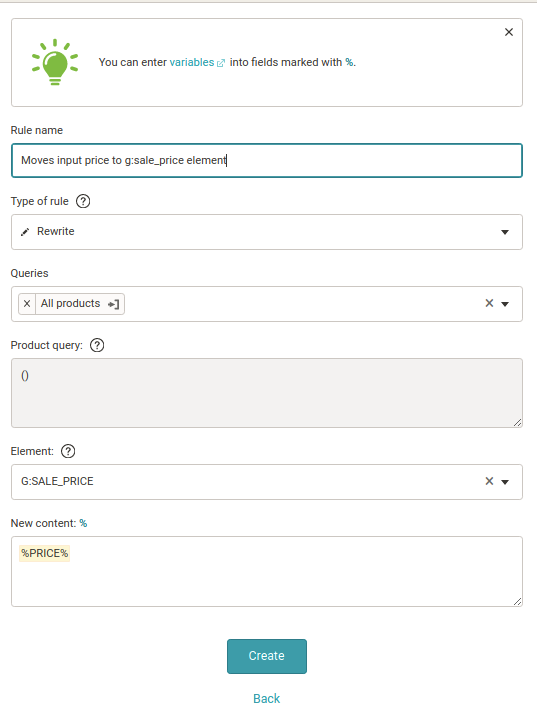
As a practice example, imagine a situation where, for some reason, the sales and discount price attributes **are being sent incorrectly**. The discount price is exported to the g:price attribute, the sale price to the g:sale\_price attribute. But it should be the opposite. In Mergado, you can use the *Rewrite* rule to “flip” values to the correct attributes. You need a total of **two rules** for this.
1\. **Create** a *Rewrite* rule. For example, call it *The rule converts the sale price to a discount price*.
2\. Apply it **to all** products.
3\. The element you want to **overwrite** is the g:sale\_price element.
4\. As new content, which you want to fill the g:sale\_price element with, **select the price attribute variable from the original feed**. That is the sale price, which is exported incorrectly from the store.
[  ](https://www.mergado.com/sites/default/files/perm/paragraph-image/6-moving-input-price.png)
5\. Using the opposite logic, **create the second rule** called *The rule that converts the discount price to the selling price*. In this case, you populate the g: price element with an attribute variable for the discount price from the original feed.
## 6. Custom label
Google allows you to create up to **5 custom labels** for each product to **manage your campaigns more effectively**. In practice, this means that you can add information to products in the Google feed that the customer will not see anywhere. But you may internally box the products according to specific attributes. Typically, this can be PNO, seasonality, margins, or best-selling products. You’ll then set your campaigns with these labels in mind, not only for Google Shopping but also for Google Ads.
1\. **Create** a new element in Mergado named g:custom\_label\_0.
2\. Use the *Rewrite* rule to **fill** it with the required values. You can fill the label with the values of the corresponding element from the original feed or create product queries based on the rules, which you can then manually fill with specific values in the *Rewrite* rule. Alternatively, you can use the *Data File Import* rule, which you use to pair values from an external CSV file to specific products.
## 7. Smart campaigns
Google allows you to set up so-called smart campaigns. They are based on **machine learning**, and they simplify and streamline advertising. The key is to have a feed **available at all times**. When Google notices an advertiser outage, smart campaigns are paused, and it can take up to 14 days for ads to be “re-learned” and resumed. Even in this case, Mergado is a good assistant. Because in the event of a failure on the online store side, it always sends the latest updated version of the feed to Google.
If you choose to advertise on Google Shopping, you probably encounter these issues. Fix them according to our instructions in Mergado and **tune your Google feed to perfection**. Can you think of any other common Google feed problems? Let us know in the comments what you optimize most often.
[](http://app.mergado.com/)

*The co-author of the article is Adam Funiok of the Proficio agency.*
### **Read more:**
[ 
### What should a proper client context look like for performance specialists?
](https://www.mergado.com/blog/master-prompt-eshopy-b2c)
[ 
### How Feed Optimization Unlocked Meta Ads Performance without Increasing Ad Spend
](https://www.mergado.com/blog/feed-optimization-for-meta-ads)
[ 
### How to Sell Successfully on idealo
](https://www.mergado.com/blog/successful-sale-on-idealo)
- [ XML feed ](https://www.mergado.com/tag/xml-feed)
[  ](https://www.mergado.com/blog/irena-prouzova)### [ Irena Prouzová ](https://www.mergado.com/blog/irena-prouzova)
Irča was in charge of the German, Austrian and Swiss Mergado markets. She took care of the website, wrote articles and communicated with customers and partners.
## What you *might be interested in next*
[ 
### How Feed Optimization Unlocked Meta Ads Performance without Increasing Ad Spend
](https://www.mergado.com/blog/feed-optimization-for-meta-ads)
[ 
### The Real Impact of Visual Product Image Optimization on Meta Campaign Performance
](https://www.mergado.com/blog/visuals-for-meta-campaigns)
[ 
### How We Migrated an E‑Shop from Shoptet to Shopify with Mergado: A Complete Migration Without Data Loss
](https://www.mergado.com/blog/how-we-migrated-e-shop-shoptet-shopify-mergado-complete-migration-without-data-loss)
## Don’t miss *anything*
Sign up for our newsletter
By logging in, you agree that we will process your data by the [terms of personal data protection](https://www.mergado.com/cookies).
Thank you, you have successfully joined our subscriber's list.
function ml_webform_success_5807248() {
var r = ml_jQuery || jQuery
r('.ml-subscribe-form-5807248 .row-success').show(), r('.ml-subscribe-form-5807248 .row-form').hide()
}