- [Case Studies](https://www.mergado.com/category/case-studies)
- [eCommerce tips](https://www.mergado.com/category/ecommerce-tips)
- [Online Store Solutions and Platforms](https://www.mergado.com/category/online-store-solutions-and-platforms)
- [Mergado Pack](https://www.mergado.com/category/mergado-pack)
- [Mergado tips](https://www.mergado.com/category/mergado-tips)
- [Mergado News](https://www.mergado.com/category/mergado-news)
- [eCommerce News](https://www.mergado.com/category/ecommerce-news)
- [How to use Mergado](https://www.mergado.com/category/how-to-use-mergado)
- [Interviews with e‑commerce gurus](https://www.mergado.com/category/interviews-e-commerce-gurus)
- [Extensions](https://www.mergado.com/category/apps-bidding-image-marketing-and-more)
- [Expansion with Mergado](https://www.mergado.com/category/expansion-with-mergado)
- [Mergado Lifestyle](https://www.mergado.com/category/mergado-lifestyle)
1. [ Home ](https://www.mergado.com/)
2. [ Mergado Blog ](https://www.mergado.com/blog)
3. [ How to use Mergado ](https://www.mergado.com/category/how-to-use-mergado)
4. **How to use Mergado Editor to prepare Malfini data for import into Shoptet**
# **How to use Mergado Editor to prepare Malfini data for import into Shoptet**
[  Veronika Kusalíková ](https://www.mergado.com/blog/veronika-kusalikova) [How to use Mergado](https://www.mergado.com/category/how-to-use-mergado)
17. 10. 2023
3 minutes read

Have you decided to start using the **Malfini format**, but need to process your data in a different way than a direct API connection? Malfini now allows clients to **import their data using** an [XML feed ](https://www.mergado.com/tag/xml-feed)that it prepares for them. This feed can then be **easily edited** in the MERGADO Editor.
function tableOfContents() {
return {
headings_menu: [],
heading_active: '', // Added to track the active section
shouldBeSticky: false,
generateToC() {
const headings = document.querySelectorAll('.js-article-full-headings h2, .js-article-full-headings h3');
let headingMap = {};
headings.forEach((heading) => { // Use an arrow function to maintain `this` context
// Normalize heading text to remove diacritics, then replace non-alphanumeric characters with dashes
var normalizedText = heading.textContent.normalize("NFD").replace(/[\u0300-\u036f]/g, ""); // Remove diacritics
var id = heading.id ? heading.id : normalizedText.trim().toLowerCase()
.split(' ').join('-').replace(/[^a-z0-9\-]/ig, ''); // Updated regex to replace non-alphanumeric characters
headingMap[id] = headingMap[id] !== undefined ? ++headingMap[id] : 0;
// Use the updated `id` with diacritics removed for the heading id and the TOC
const finalId = headingMap[id] ? `${id}-${headingMap[id]}` : id;
this.headings_menu.push({
id: finalId,
title: heading.textContent,
level: heading.tagName.toLowerCase(), // Track heading level
active: false, // Initially set active to false
});
heading.id = finalId;
});
},
checkStickyNeeded() {
const ul = this.$el.querySelector('ul');
if (ul) {
this.shouldBeSticky = ul.scrollHeight < window.innerHeight;
}
},
setActiveHeading() {
// disabled not working with active state on click
// add @scroll.window="setActiveHeading()" to the parent div
// const headings = document.querySelectorAll('.js-article-full-headings h2');
// let activeHeading = '';
// let closestHeadingDistance = Infinity;
// headings.forEach((heading) => {
// const rect = heading.getBoundingClientRect();
// const offset = rect.top - window.innerHeight / 2; // Consider heading in the middle of the screen as active
// if (offset < 0 && Math.abs(offset) < closestHeadingDistance) {
// activeHeading = heading.id;
// closestHeadingDistance = Math.abs(offset);
// }
// });
// // Update the active state in headings_menu
// if (activeHeading !== this.heading_active) {
// this.headings_menu = this.headings_menu.map(item => ({
// ...item,
// active: item.id === activeHeading,
// }));
// this.heading_active = activeHeading;
// }
},
setActiveItem(clickedId) {
this.headings_menu.forEach(item => {
item.active = (item.id === clickedId);
});
this.heading_active = clickedId; // Optionally update the heading_active property if used
},
};
}
1. —
If you’re looking for how to **import your** *Malfini* **data** into your **Shoptet** store, check out this short guide.
(So far we only provide Malfini integration with Shoptet. New international formats are expected to be released soon).
## Creating a project within the MERGADO Editor
a) The first step is to s**elect the correct format** to use for processing the data feed within the Mergado Editor.
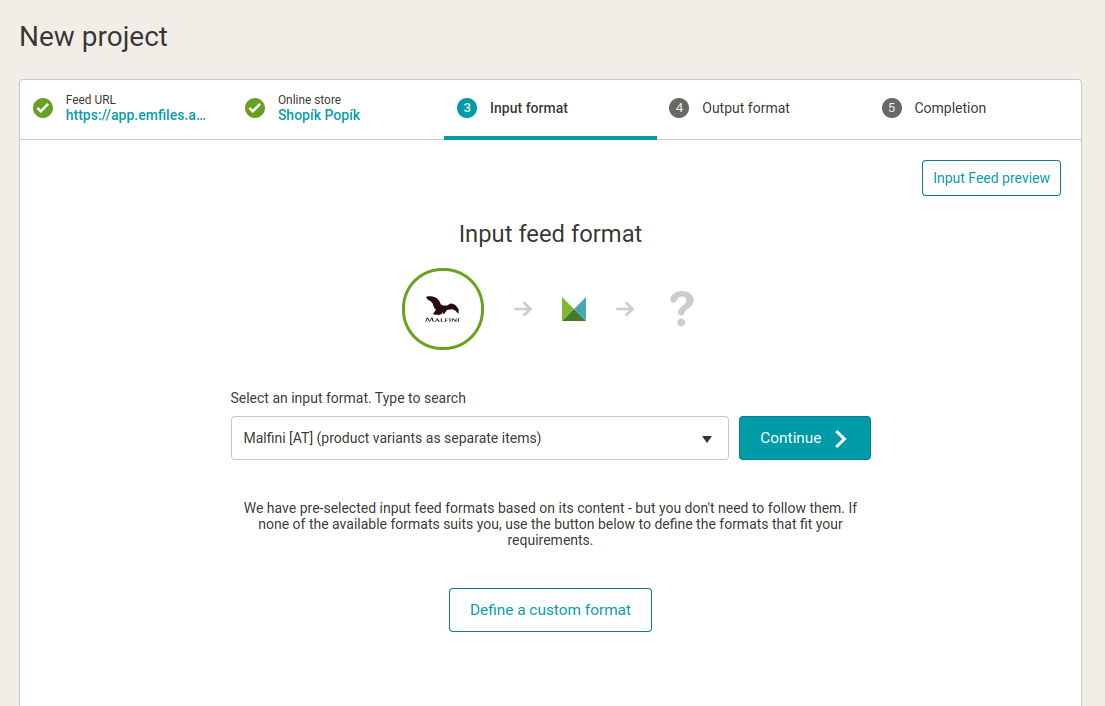
b) Next, you enter the Malfini assigned **URL** where the data with your items is available. In the new project wizard, you select *Malfini* as the **input format** (product variants as separate items).
[  ](https://www.mergado.com/sites/default/files/perm/paragraph-image/malfini_input_feed.png)
Even when you want to **process variations of items** (typically color or size), we recommend that you choose the above-selected format with this name.
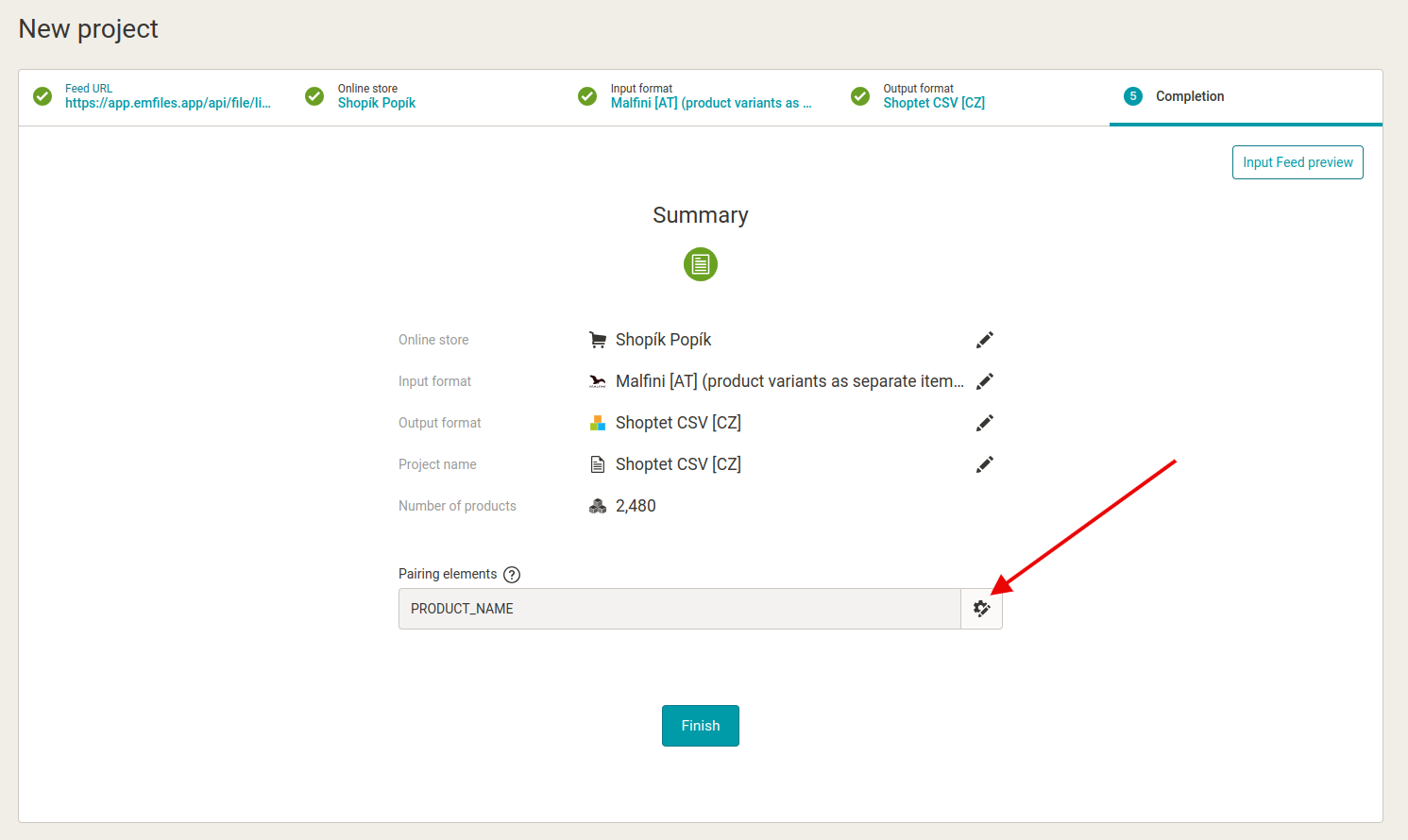
c) As part of the recap, select the menu that you want to **edit the pairing elements**.
[  ](https://www.mergado.com/sites/default/files/perm/paragraph-image/pairing_elements_malfini_0.png)
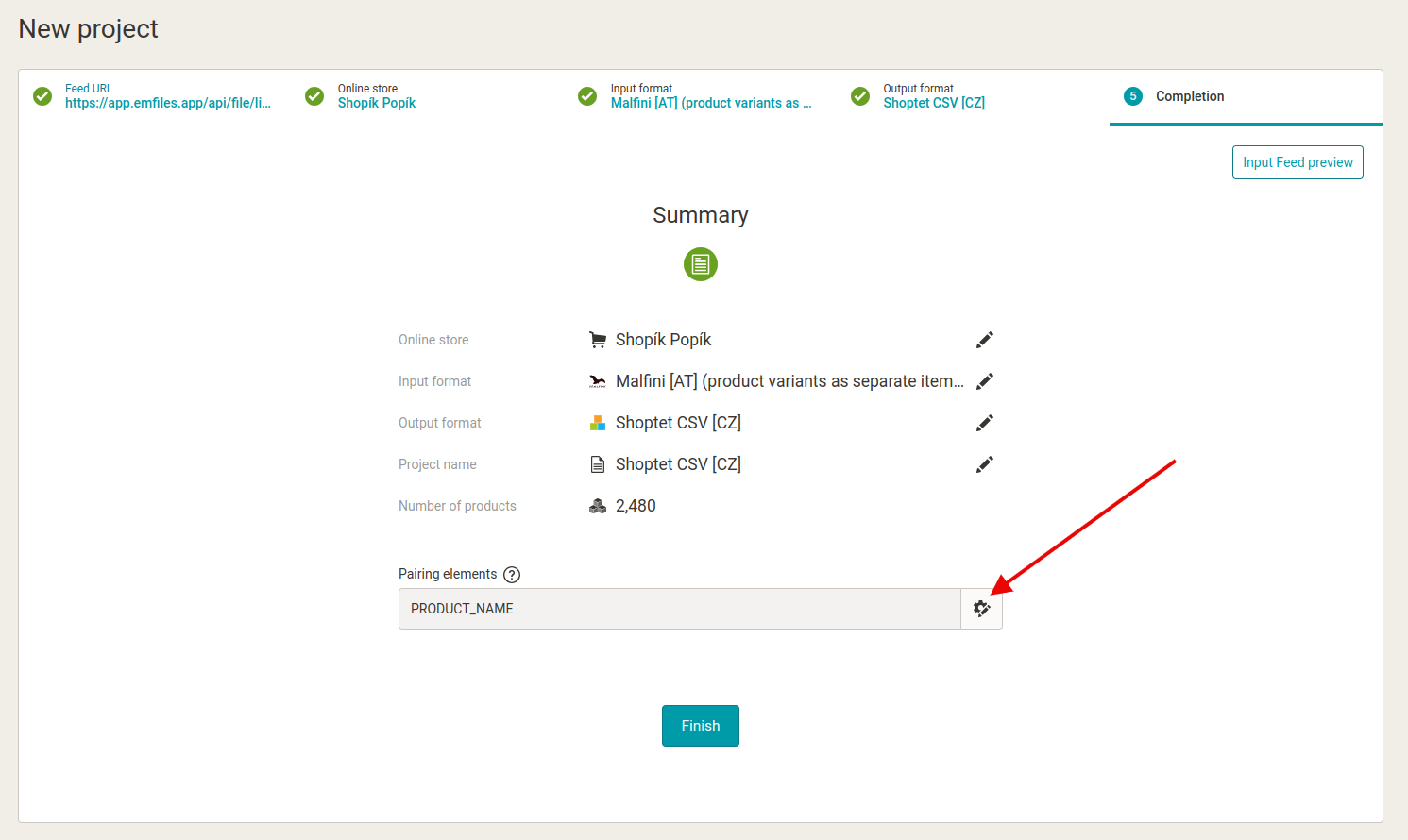
d) Select the CODE element as the **new matching element** and delete the original PRODUCT\_NAME.
[  ](https://www.mergado.com/sites/default/files/perm/paragraph-image/pairing_elements_malfini.png)
Once the project is complete, you need to create **a few** [**rules**](https://www.mergado.com/tag/rules-in-mergado) **and small settings** in the feed that will help you ensure the correct display of items in your online store on *Shoptet*.
### 1. Create rule to set categories for online store
First, create a rule to **set exactly where items should be imported into your online store**. You do this by using a rule called [Rename categories in bulk](https://forum.mergado.com/t/rename-categories-in-bulk/489).
[ 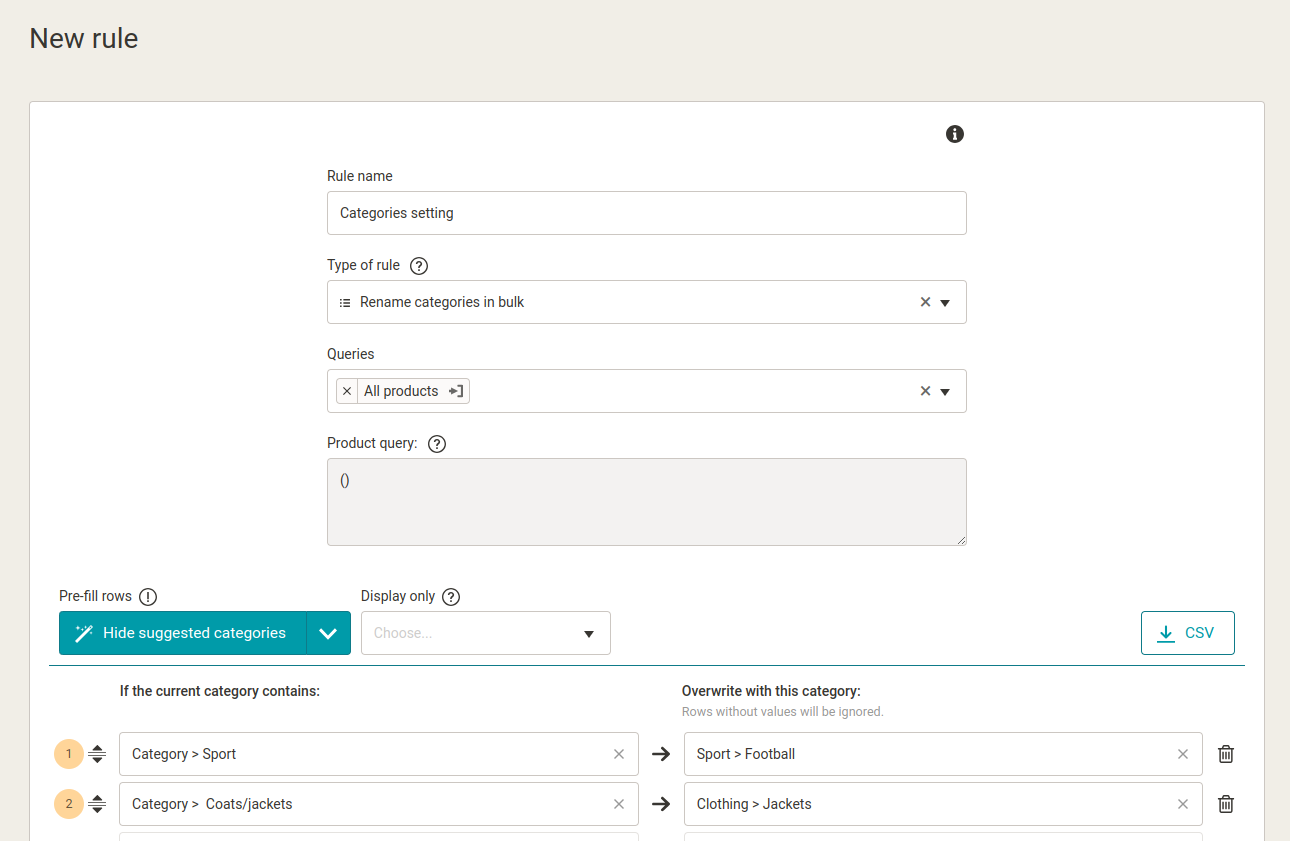 ](https://www.mergado.com/sites/default/files/perm/paragraph-image/categories_mapping.png) Example of using the Rename categories in bulk rule.
In the left part, you can see the **Malfini categories** and in the right column, you can define **the categories** that you have in your online store on the [Shoptet](https://www.mergado.com/topic/shoptet) platform.
### 2. Set up a “common name” for variant products
The output format in the [Mergado Editor](https://www.mergado.com/mergado-smart-product-feed-manager) **splits the variants into separate products** that have a unique name, which typically includes color and size, etc.
**For example:**
*Base Logo R unisex t‑shirt dark grey 2XL*
However, for subsequent processing of variant items, it is ideal to have a **name that is the same for all** size/colour variants. So we create a rule to ensure this by merging the current PRODUCT\_NAME + TITLE elements.
[ 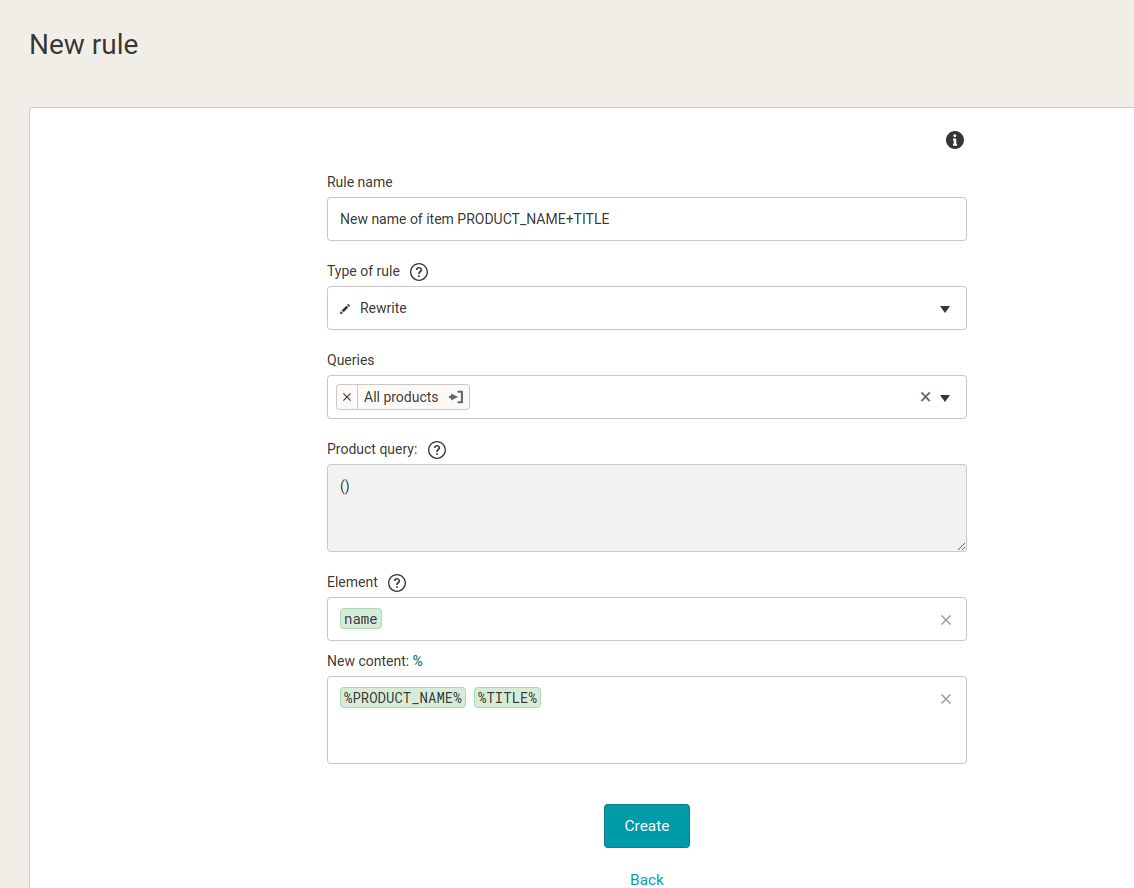 ](https://www.mergado.com/sites/default/files/perm/paragraph-image/rewrite_rule.png) In the rule we use so-called variables.
We describe the variables in **more detail** [in this thread ](https://forum.mergado.com/t/variables/506)on the Mergado forum.
### 3. We will choose a maximum of 3 elements that will be used within the Shoptet to merge items as a “variant product”
**First, a brief explanation**: for *Shoptet* to **merge items**, it needs to know which details within the data (typically color or size) define that the items belong together.
Within the *Shoptet CSV* format, elements called “variant:xxx” are used for this purpose, for example “variant:color” or “variant:size”.
**However, keep in mind** that there can always be a maximum of 3 elements per item. For our purposes, however, only size and color will suffice.
a) On the Elements page, leave only the elements named “variant:color” and “variant:size” **exposed**.
b) **Hide the other elements** that start with “variant:whatever” using the toggle switch on the right side.
[ 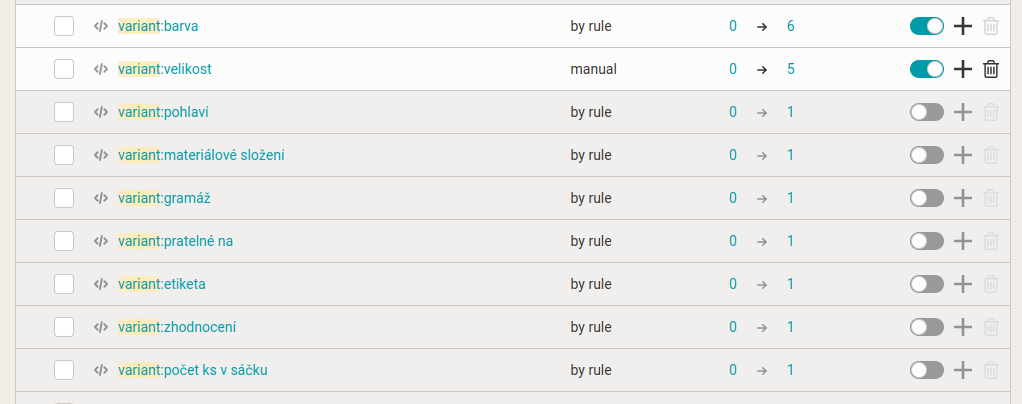 ](https://www.mergado.com/sites/default/files/perm/paragraph-image/hide_elements.png) In our case, we have chosen a size and color for the variant selection that will ensure such a display of the goods within the Shoptet
Mergado Editor is a feed marketing tool that allows you to [manage data for online shopping solutions on Shoptet](https://www.mergado.com/topic/shoptet) **in a bulk and automated way**. It offers **complete support** for its 3 formats:
- Shoptet supplier
- Shoptet complete
- Shoptet universal
## Ensuring data import into the Shoptet platform
### One-time data import
The first way is to provide a **one-time import of data** using a file prepared by Mergado.
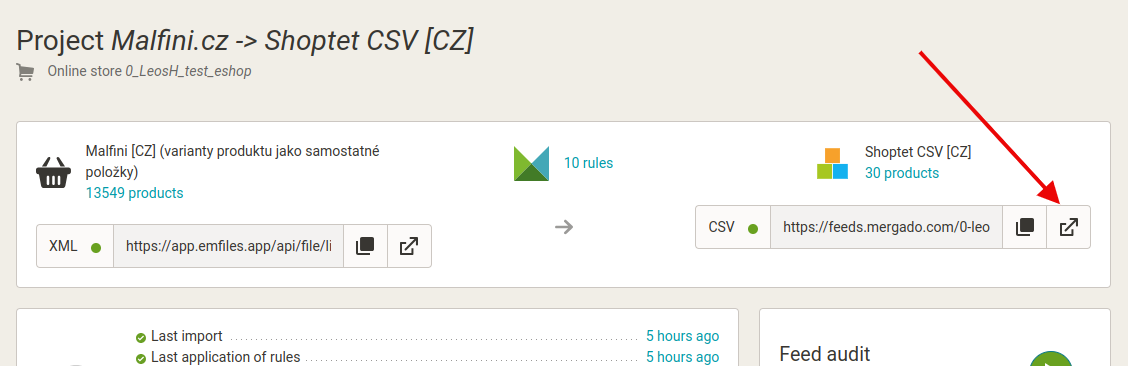
a) First, **download the CSV file** generated by Mergado.
b) On the **Overview** page, click on the icon to download the file.
[  ](https://www.mergado.com/sites/default/files/perm/paragraph-image/download_feed.png)
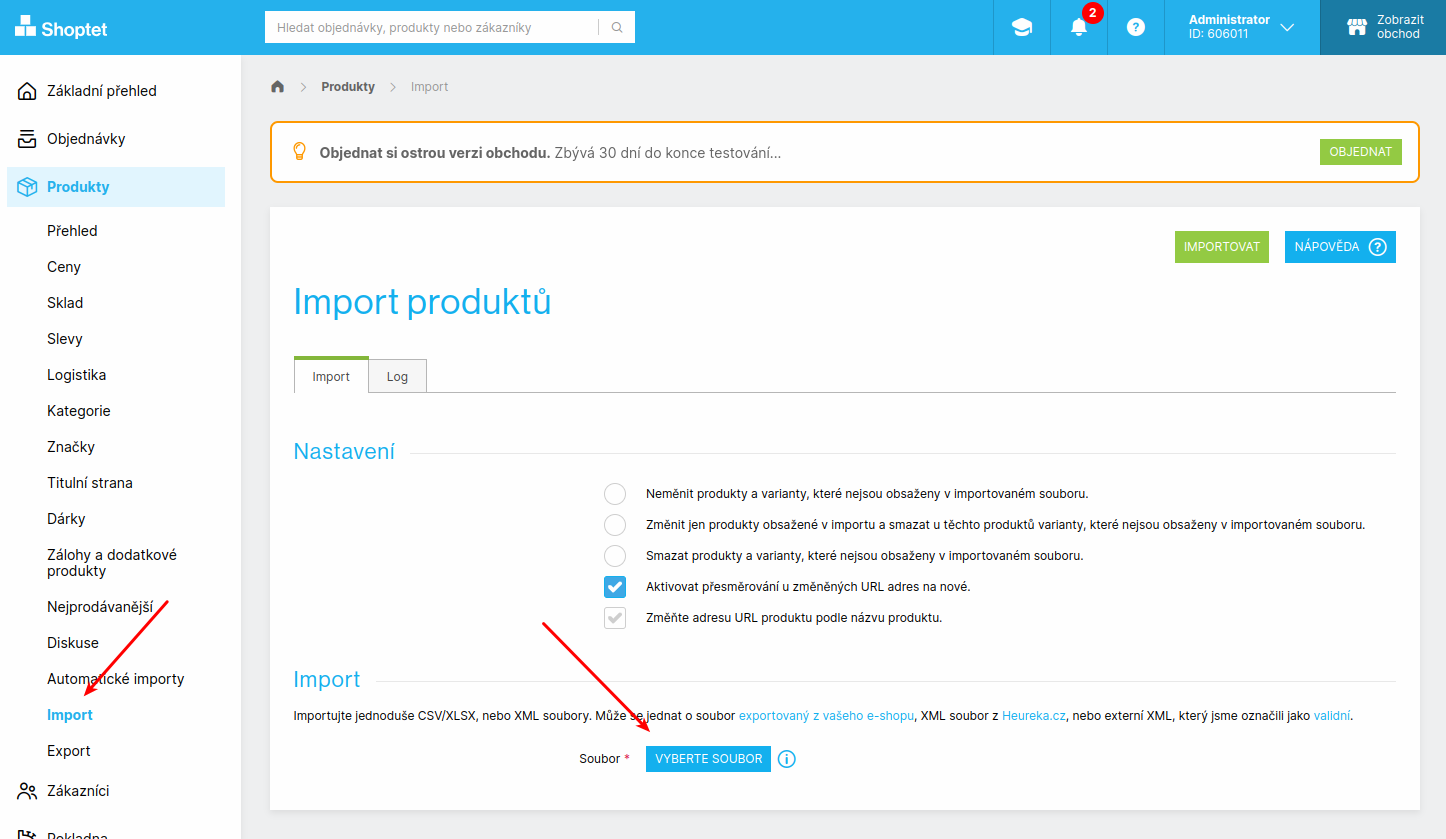
c) Then **upload the file** to the *Shoptet* **administration** in the *Products* -> *Import* section:
[  ](https://www.mergado.com/sites/default/files/perm/paragraph-image/7-nahrani-souboru-do-shoptet-administrace.png)
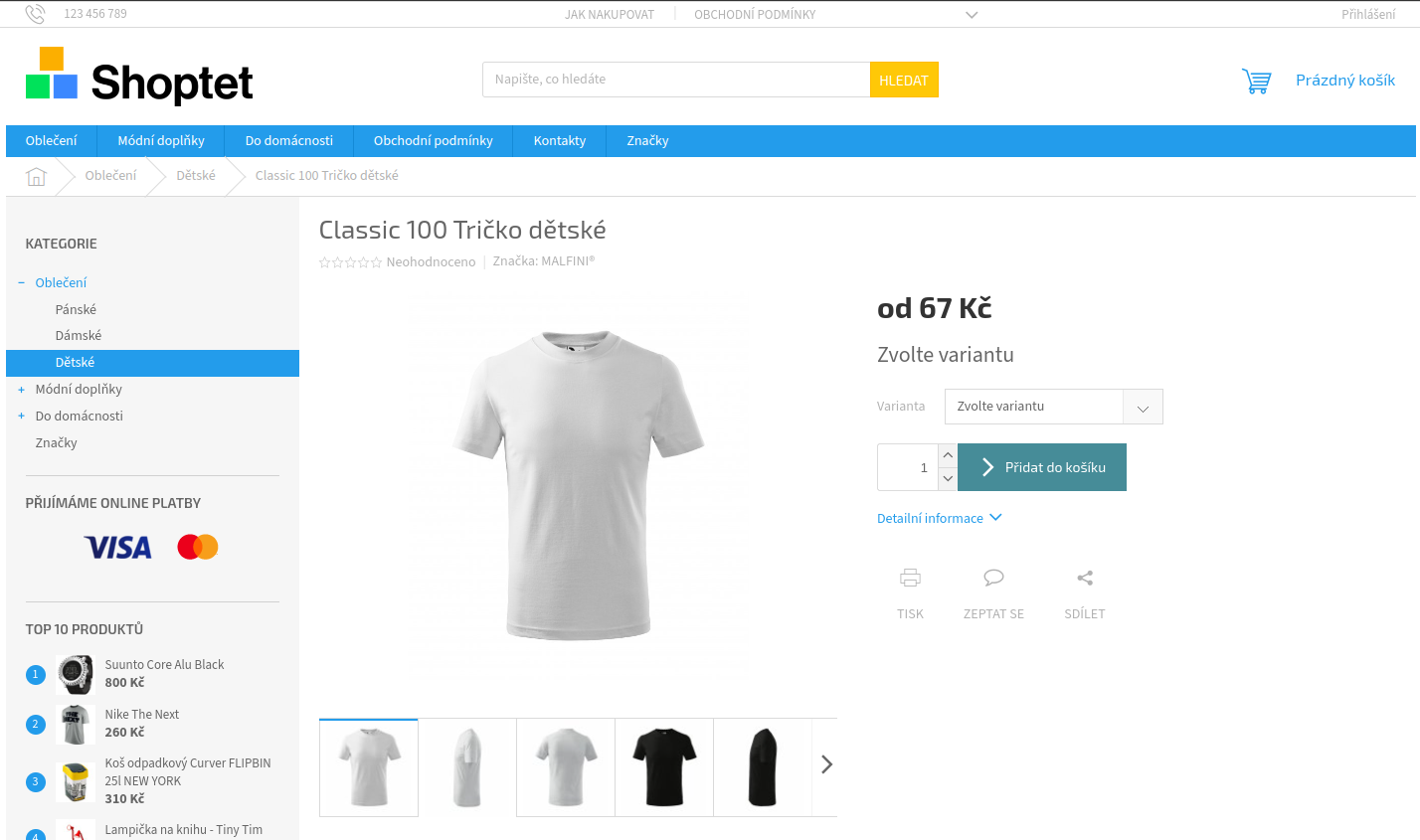
d) The variant items are then **imported in the following form**.
[  ](https://www.mergado.com/sites/default/files/perm/paragraph-image/8-import-variantnich-polozek-do-shoptetu.png)
- For **correct processing of item variants** in *Malfini* format in MERGADO, currently **use the** ***Shoptet CSV*** format.
- However, it is **only usable for manual data import** within *Shoptet*.
- We are also working on **converting it to XML format**, which you can then use for automatic imports. This option will start to be available during January 2024.
## With Mergado you can make changes to feeds yourself
Optimizing feeds with Mergado is **not difficult**. Depending on your needs, you can work with the formats you already use or easily start new ones. With Mergado, you can manage your online store advertising yourself — **speeding up** your daily marketing tasks and **saving** you the costs of programming.
 Mergado with a 30-day free trial
- optimize your feed by yourself and save the cost for the developer’s time
- full access to all features already in the trial version
[Try Mergado for free](https://accounts.mergado.com/register/)

If you have any questions, please do not hesitate to contact [Mergado support](https://www.mergado.com/contact).
- [ Shoptet ](https://www.mergado.com/topic/shoptet)
- [ Tips for working with MERGADO ](https://www.mergado.com/topic/tips-for-working-with-mergado)
[  ](https://www.mergado.com/blog/veronika-kusalikova)### [ Veronika Kusalíková ](https://www.mergado.com/blog/veronika-kusalikova)
A copywriter and content specialist Veronika is in charge of the English content and communication. She spreads the word about Mergado and e‑commerce on our blog and social media. After she shuts her computer down, you can catch her knitting a sweater, strolling around second-hand shops or traveling.
## What you *might be interested in next*
[ 
### How We Migrated an E‑Shop from Shoptet to Shopify with Mergado: A Complete Migration Without Data Loss
](https://www.mergado.com/blog/how-we-migrated-e-shop-shoptet-shopify-mergado-complete-migration-without-data-loss)
[ 
### How to open large XML file
](https://www.mergado.com/blog/how-to-open-large-xml-file)
[ 
### Introducing smart value insertion. It will speed up the creation of bulk rules
](https://www.mergado.com/blog/smart-value-insertion)
## Don’t miss *anything*
Sign up for our newsletter
By logging in, you agree that we will process your data by the [terms of personal data protection](https://www.mergado.com/cookies).
Thank you, you have successfully joined our subscriber's list.
function ml_webform_success_5807248() {
var r = ml_jQuery || jQuery
r('.ml-subscribe-form-5807248 .row-success').show(), r('.ml-subscribe-form-5807248 .row-form').hide()
}