- [Case Studies](https://www.mergado.com/category/case-studies)
- [eCommerce tips](https://www.mergado.com/category/ecommerce-tips)
- [Online Store Solutions and Platforms](https://www.mergado.com/category/online-store-solutions-and-platforms)
- [Mergado Pack](https://www.mergado.com/category/mergado-pack)
- [Mergado tips](https://www.mergado.com/category/mergado-tips)
- [Mergado News](https://www.mergado.com/category/mergado-news)
- [eCommerce News](https://www.mergado.com/category/ecommerce-news)
- [How to use Mergado](https://www.mergado.com/category/how-to-use-mergado)
- [Interviews with e‑commerce gurus](https://www.mergado.com/category/interviews-e-commerce-gurus)
- [Extensions](https://www.mergado.com/category/apps-bidding-image-marketing-and-more)
- [Expansion with Mergado](https://www.mergado.com/category/expansion-with-mergado)
- [Mergado Lifestyle](https://www.mergado.com/category/mergado-lifestyle)
1. [ Home ](https://www.mergado.com/)
2. [ Mergado Blog ](https://www.mergado.com/blog)
3. [ How to use Mergado ](https://www.mergado.com/category/how-to-use-mergado)
4. **5 most common product feed errors and how to fix them in MERGADO**
# **5 most common product feed errors and how to fix them in MERGADO**
[  Veronika Kusalíková ](https://www.mergado.com/blog/veronika-kusalikova) [How to use Mergado](https://www.mergado.com/category/how-to-use-mergado)
24. 10. 2023
6 minutes read
Figure out the **most common mistakes** ahead of time and **seamlessly link** your online store to any comparison site or marketplace.
function tableOfContents() {
return {
headings_menu: [],
heading_active: '', // Added to track the active section
shouldBeSticky: false,
generateToC() {
const headings = document.querySelectorAll('.js-article-full-headings h2, .js-article-full-headings h3');
let headingMap = {};
headings.forEach((heading) => { // Use an arrow function to maintain `this` context
// Normalize heading text to remove diacritics, then replace non-alphanumeric characters with dashes
var normalizedText = heading.textContent.normalize("NFD").replace(/[\u0300-\u036f]/g, ""); // Remove diacritics
var id = heading.id ? heading.id : normalizedText.trim().toLowerCase()
.split(' ').join('-').replace(/[^a-z0-9\-]/ig, ''); // Updated regex to replace non-alphanumeric characters
headingMap[id] = headingMap[id] !== undefined ? ++headingMap[id] : 0;
// Use the updated `id` with diacritics removed for the heading id and the TOC
const finalId = headingMap[id] ? `${id}-${headingMap[id]}` : id;
this.headings_menu.push({
id: finalId,
title: heading.textContent,
level: heading.tagName.toLowerCase(), // Track heading level
active: false, // Initially set active to false
});
heading.id = finalId;
});
},
checkStickyNeeded() {
const ul = this.$el.querySelector('ul');
if (ul) {
this.shouldBeSticky = ul.scrollHeight < window.innerHeight;
}
},
setActiveHeading() {
// disabled not working with active state on click
// add @scroll.window="setActiveHeading()" to the parent div
// const headings = document.querySelectorAll('.js-article-full-headings h2');
// let activeHeading = '';
// let closestHeadingDistance = Infinity;
// headings.forEach((heading) => {
// const rect = heading.getBoundingClientRect();
// const offset = rect.top - window.innerHeight / 2; // Consider heading in the middle of the screen as active
// if (offset < 0 && Math.abs(offset) < closestHeadingDistance) {
// activeHeading = heading.id;
// closestHeadingDistance = Math.abs(offset);
// }
// });
// // Update the active state in headings_menu
// if (activeHeading !== this.heading_active) {
// this.headings_menu = this.headings_menu.map(item => ({
// ...item,
// active: item.id === activeHeading,
// }));
// this.heading_active = activeHeading;
// }
},
setActiveItem(clickedId) {
this.headings_menu.forEach(item => {
item.active = (item.id === clickedId);
});
this.heading_active = clickedId; // Optionally update the heading_active property if used
},
};
}
1. —
Price comparison sites and marketplaces are among the main channels where the **quality of the product catalogue determines success**. Therefore, it is important that you **supply them with a quality XML feed** that contains data about your product range. You can handle most of the feed editing using the Advanced Product Comparators feature within your online store administration, but if you are looking for **automation**, you can also reach for an **external tool such as MERGADO**.
## What is MERGADO Editor
[MERGADO](https://www.youtube.com/watch?v=eQZN6Qchexg&ab_channel=MERGADOEN) is a multifunctional tool that replaces tedious manual data management with **automated feed editing**. It can guarantee you **flawless sales** on multiple advertising platforms, comparison sites or marketplaces. It helps thousands of online stores every day to **achieve better positions** compared to their competitors and **reduce their costs**.
[  ](https://www.mergado.com/sites/default/files/perm/paragraph-image/mergado_banner_en.png)
### How does it work?
The editor works on the [principle of rules](https://www.mergado.com/blog/how-mergado-works) that **make it easy to filter content** in the feed. In this way, you can add and edit product information according to the needs of advertising channels or create groups of best-selling products from the online store. You can **set up the feed yourself** to the quality you need without paying developers.
Through its features, you can tame, for example, the matching of products to categories on comparison shopping sites or add free shipping to the feed. Take a look at the **5 most common XML feed modifications** that MERGADO can handle.
## 1. How to set product parameters
**Product parameters** **play a very important role** in the XML feed and are used for filtering offers in comparison engines or marketplaces, matching offers or **informing customers about product features**. They are very important to allow customers to conveniently select products based on their preferences. So it is very important for your online store to have these parameters in the XML feed.
Individual comparison sites or marketplaces usually use the parameters supplied by you to filter the offers through parametric filters. **The more product parameters you supply, the better**. If the customer specifies product requirements via parametric filters, it is **whether you have added parameters that determines whether your offer is displayed**.
Parameters in the XML feed represent **product features** such as *color*, *size*, or various other features. However, they are often missing in the feeds, are in poor quality form or the mentioned properties can be found rather in the product name. Therefore, for error-free processing of the advertisement, **pay attention to the PARAM parameters** and their correct filling.
If you do not have parameters for your products, MERGADO Editor will help you to add them with a special function — the Set Product Parameters rule.
1. In the editor, go to the *Rules* tab and click on *New Rule*.
2. Name the rule and select the type - *Set Product Parameter*.
3. Select the **query** to which the rule should be applied.
4. Then enter the *parameter names* on the left side and the corresponding values to populate them on the right side.
Just apply the rule and the created parameters will be **filled with the required values**.
[ 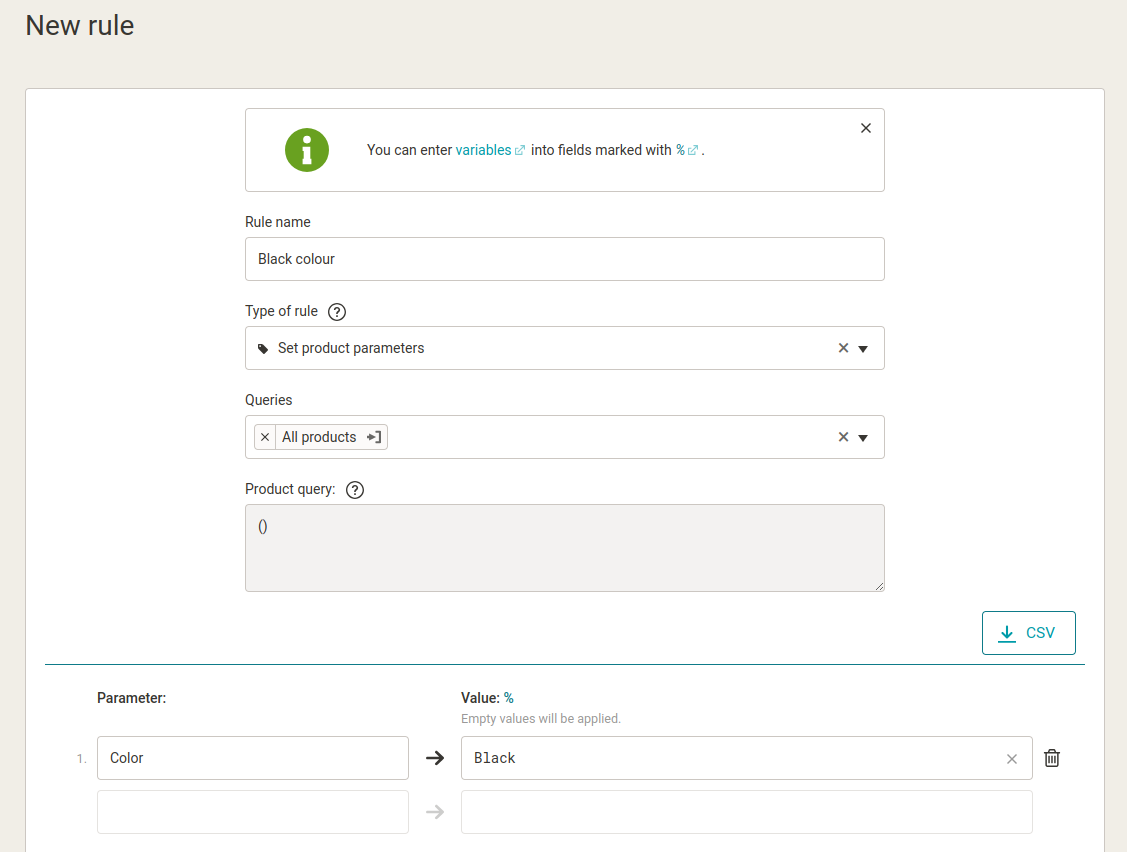 ](https://www.mergado.com/sites/default/files/perm/paragraph-image/parameter_setting_0.png) Setting product parameters in the MERGADO Editor.
## 2. Make it easy for you to deal with transport and its price
Information about shipping and its price is one of the most important details, and the right shipping can mean that the customer is interested in your offer and motivated to click through and buy on your online store.
A flawless shipping setup is another key factor not only for the success of listing your goods, but also **greatly influences customer decision making**. Don’t underestimate it — in MERGADO, you can handle shipping again with one rule [Set Shipping Rates](https://www.mergado.com/blog/set-up-shipping).
### Procedure in MERGADO Editor:
1. In the left menu, click on the **+** symbol on the *Rules* line to go to *New Rule*.
2. **Name** the rule and select the rule type *Set Shipping Rates*.
3. **Apply** the rule to *All Products*.
4. Now you just need to **fill in the shipping price** to each carrier. Either click the *Autofill left side* button on the left side to see a complete list of carriers in your country, or select and add individual carriers from the list as you scroll.
5. Then **fill in the appropriate shipping price** on the right. Fill in only the numeric value without specifying the currency.
6. **Save** the prepared rule. You can return to the rule at any time to edit it.
[ 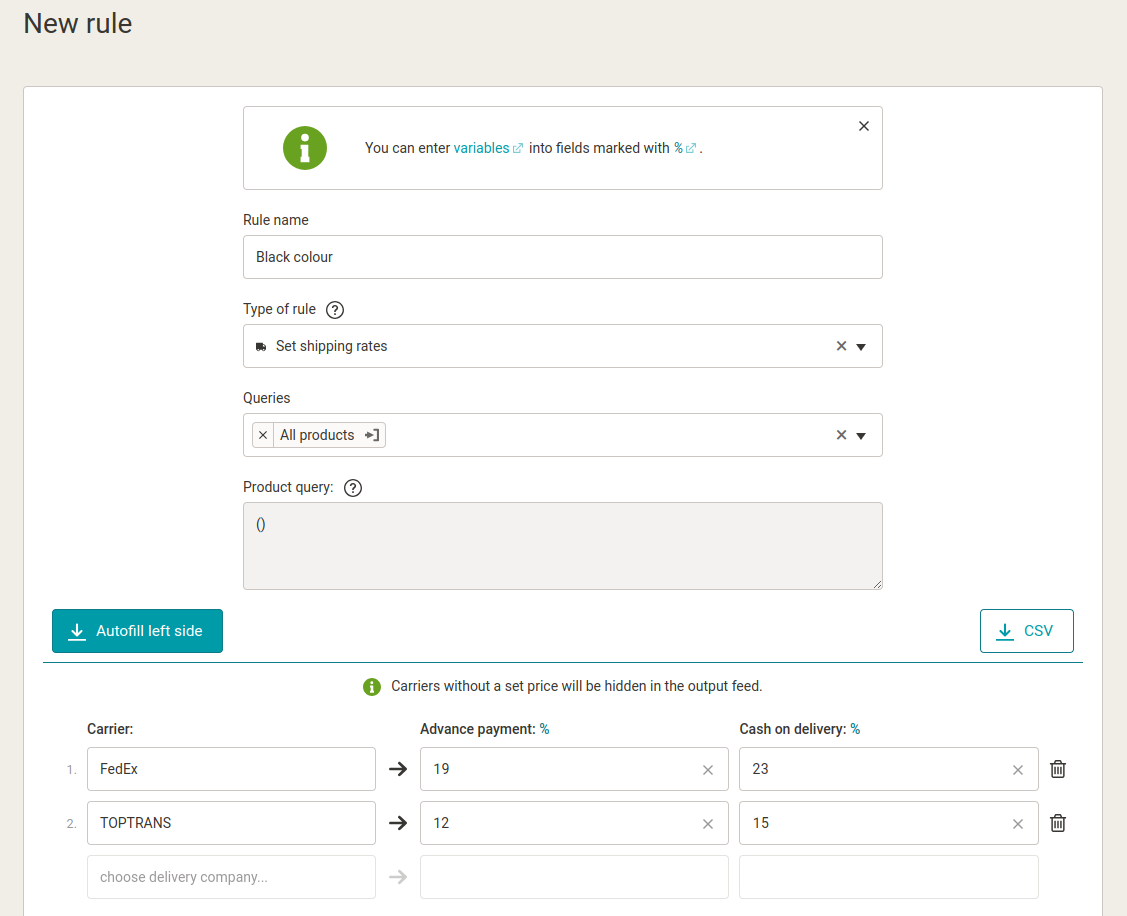 ](https://www.mergado.com/sites/default/files/perm/paragraph-image/shipping_rates.png) Setting Shipping rates rule.
## 3. Mapping products in a few clicks
Mapping works differently on each comparison site, but in the case of Heureka and Zboží.cz, for example, the mapping is done by first sending the online store a product offer via XML feed. Subsequently, the offers (products) are mapped to the correct categories and possibly assigned to existing product cards.
[Well-mapped online store categories ](https://www.mergado.com/blog/mergado-category-matching)to comparison categories are therefore **key**. It is common that the names do not exactly match the category tree of the comparator or are named too generically. To avoid having to edit such categories manually, **MERGADO has automated this setting as well**.
###
How to proceed in the editor
1. In the left menu, click the **+** symbol on the *Rules* line to go to *New Rule*.
2. **Type the name** of the rule and select the rule type *Rename Categories in Bulk*.
3. **Apply** the rule to *All products*.
4. Click on the *Suggest Categories* button to **pre-populate the left side** with the actual category names that appear in your product feed.
5. On the right, just **start typing a keyword** and MERGADO will **automatically offer you options** corresponding to the category tree of the product comparison.
6. Scroll through the categories on the right to **check the category selection is correct**, or correct the selection if necessary. If you think the category does not match at all, you can delete the category and enter a keyword that defines the category better. Then simply select a more appropriate category from the list using the **whisperer**.
7. To **save the rule**, click the *Create* button and you’re done. The rule is saved in the list of applied rules, where you can return to it at any time to edit or delete it.
[ 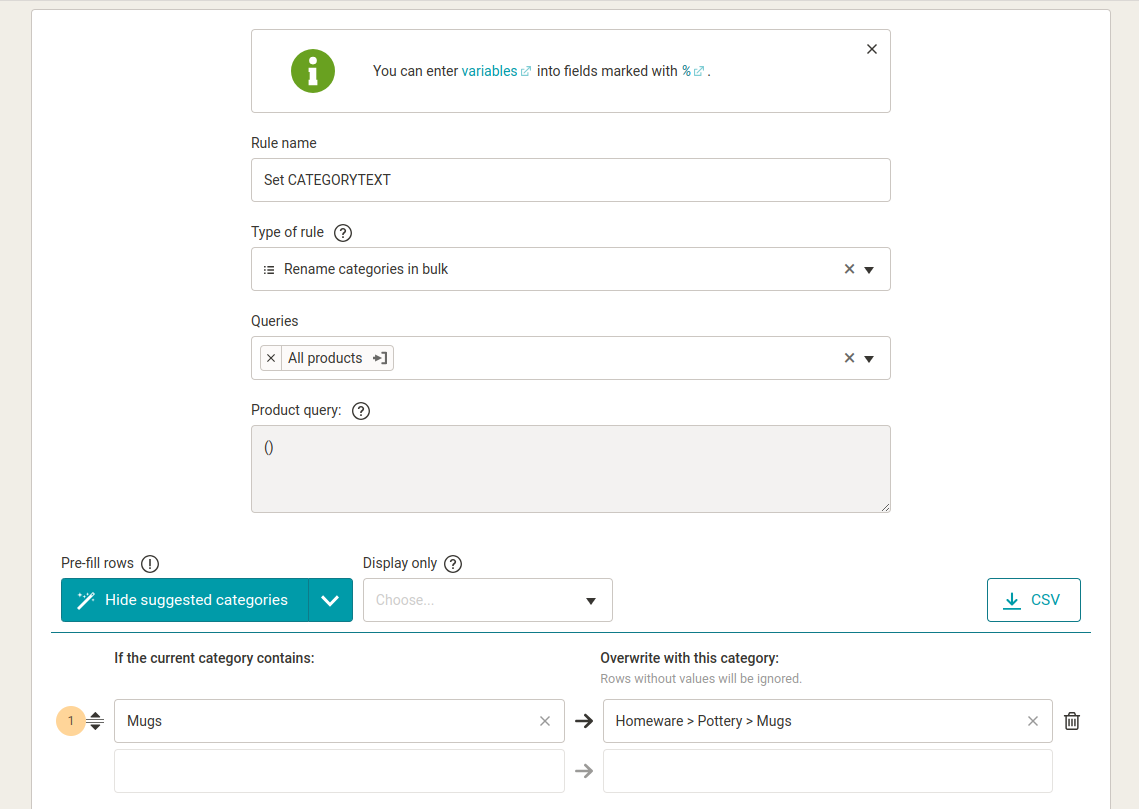 ](https://www.mergado.com/sites/default/files/perm/paragraph-image/rename_categories_bulk.png) Rename categories in bulk.
## 4. Learn how to edit product names
Product names are very important because they are used to match products to product cards. They contain the exact name, which should include the **manufacturer**, the **product name**, the **product number,** and the values of the key parameters that distinguish the possible variants (color, memory, size…).
The <PRODUCTNAME> tag is used in the XML feed to indicate the product name, which **should not** contain additional information (e.g. embedded gift, free shipping, etc.). If the name does contain unauthorized text, for example. “free gift”, you can [remove it with three clicks in MERGADO](https://www.mergado.com/blog/find-and-replace-rule-guide).
Choose the *Find and Replace* rule, where you fill in the left column with the text variants to be removed (even with a space at the beginning), placing each on one line, and leaving the column on the right empty (the text is replaced with empty values, i.e. removed).
[ 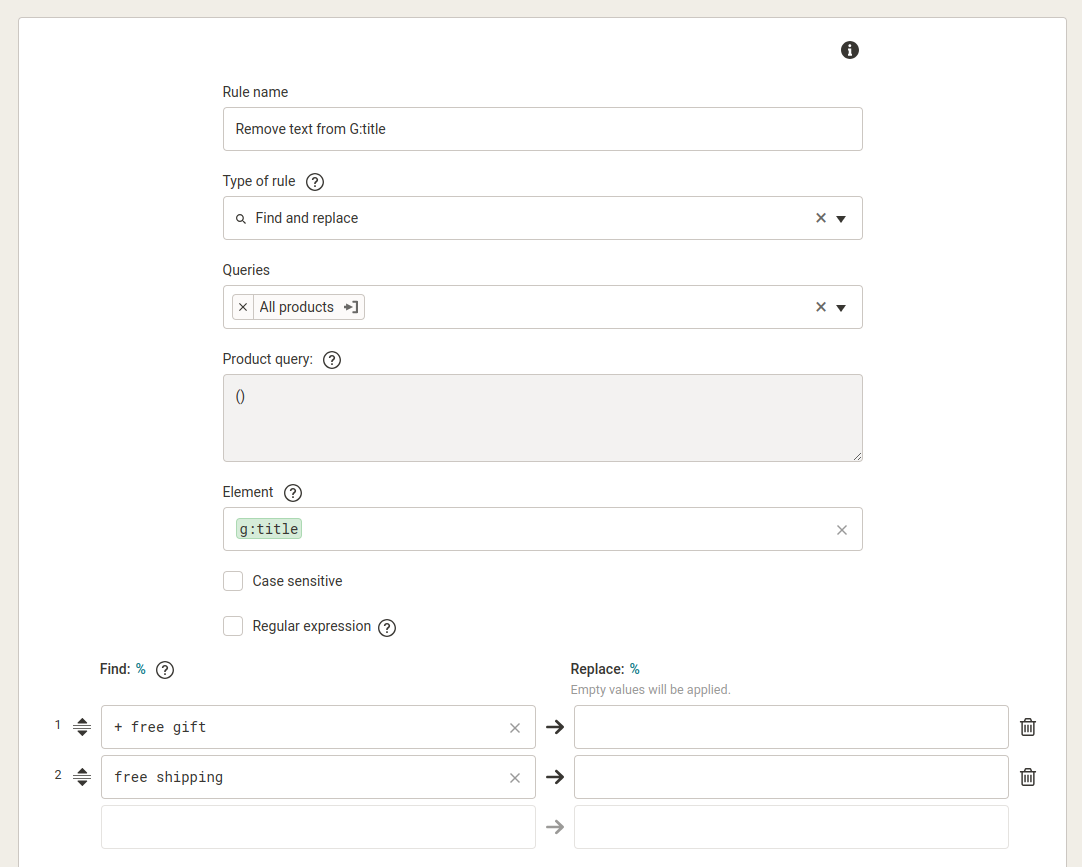 ](https://www.mergado.com/sites/default/files/perm/paragraph-image/find_replace_rule.png) Find and replace rule.
## 5. Benefits of optional elements in the feed
Optional elements in the feed include labels such as *Custom label*, which are used to **label product queries**. Why add them if they are optional? Because they allow you to create product queries that you can then work with in advertising systems, e.g. **Google Ads** or **Meta Ads**. You can thus **increase the effectiveness of your PPC campaigns**.
MERGADO Editor also has a simple solution for this case, which any marketer or online retailer can handle. Just use the *Custom label* in MERGADO Editor to label your product queries, for example, by **price level, ROI, margin** and so on. Then, in the Ads Manager, you select the products with this label and turn on a campaign specifically for it, for example. What’s more, customers won’t even see these labels.
## Conclusion
Whether it’s a minor tweak to an XML feed or a complex ad campaign setup, [MERGADO](https://www.mergado.com/mergado-smart-product-feed-manager) offers **solutions for all e‑commerce problems**.
Use the editor to precisely target your ads and fine-tune your product information. **For the first 30 days, it’s completely free** with all features.
If you want help with XML feed editing, don’t hesitate to contact us. We will be happy to help you with [MERGADO](https://www.mergado.com/contact).
 Mergado with a 30-day free trial
- optimize your feed by yourself and save the cost for the developer’s time
- full access to all features already in the trial version
[Try Mergado for free](https://accounts.mergado.com/register/)

## Read more:
[ 
### How Feed Optimization Unlocked Meta Ads Performance without Increasing Ad Spend
](https://www.mergado.com/blog/feed-optimization-for-meta-ads)
[ 
### How We Migrated an E‑Shop from Shoptet to Shopify with Mergado: A Complete Migration Without Data Loss
](https://www.mergado.com/blog/how-we-migrated-e-shop-shoptet-shopify-mergado-complete-migration-without-data-loss)
[ 
### How to import data from Malfini to your e‑shop
](https://www.mergado.com/blog/jak-zajistit-import-dat-z-malfini-do-vaseho-e-shopu)
- [ MERGADO ](https://www.mergado.com/tag/mergado)
[  ](https://www.mergado.com/blog/veronika-kusalikova)### [ Veronika Kusalíková ](https://www.mergado.com/blog/veronika-kusalikova)
A copywriter and content specialist Veronika is in charge of the English content and communication. She spreads the word about Mergado and e‑commerce on our blog and social media. After she shuts her computer down, you can catch her knitting a sweater, strolling around second-hand shops or traveling.
## What you *might be interested in next*
[ 
### How We Migrated an E‑Shop from Shoptet to Shopify with Mergado: A Complete Migration Without Data Loss
](https://www.mergado.com/blog/how-we-migrated-e-shop-shoptet-shopify-mergado-complete-migration-without-data-loss)
[ 
### How to open large XML file
](https://www.mergado.com/blog/how-to-open-large-xml-file)
[ 
### Introducing smart value insertion. It will speed up the creation of bulk rules
](https://www.mergado.com/blog/smart-value-insertion)
## Don’t miss *anything*
Sign up for our newsletter
By logging in, you agree that we will process your data by the [terms of personal data protection](https://www.mergado.com/cookies).
Thank you, you have successfully joined our subscriber's list.
function ml_webform_success_5807248() {
var r = ml_jQuery || jQuery
r('.ml-subscribe-form-5807248 .row-success').show(), r('.ml-subscribe-form-5807248 .row-form').hide()
}