- [Case Studies](https://www.mergado.com/category/case-studies)
- [eCommerce tips](https://www.mergado.com/category/ecommerce-tips)
- [Online Store Solutions and Platforms](https://www.mergado.com/category/online-store-solutions-and-platforms)
- [Mergado Pack](https://www.mergado.com/category/mergado-pack)
- [Mergado tips](https://www.mergado.com/category/mergado-tips)
- [Mergado News](https://www.mergado.com/category/mergado-news)
- [eCommerce News](https://www.mergado.com/category/ecommerce-news)
- [How to use Mergado](https://www.mergado.com/category/how-to-use-mergado)
- [Interviews with e‑commerce gurus](https://www.mergado.com/category/interviews-e-commerce-gurus)
- [Extensions](https://www.mergado.com/category/apps-bidding-image-marketing-and-more)
- [Expansion with Mergado](https://www.mergado.com/category/expansion-with-mergado)
- [Mergado Lifestyle](https://www.mergado.com/category/mergado-lifestyle)
1. [ Home ](https://www.mergado.com/)
2. [ Mergado Blog ](https://www.mergado.com/blog)
3. [ How to use Mergado ](https://www.mergado.com/category/how-to-use-mergado)
4. **Create custom macro in Mergado**
# **Create custom macro in Mergado**
[  Lukáš Horák ](https://www.mergado.com/blog/lukas-horak) [How to use Mergado](https://www.mergado.com/category/how-to-use-mergado)
8. 4. 2020
3 minutes read

We have recently presented the option of [creating custom macros](https://www.mergado.com/custom-macros). Therefore, we will show you how to create such a macro. By learning how to add and set up macros, you can **automate many tasks in Mergado**.
function tableOfContents() {
return {
headings_menu: [],
heading_active: '', // Added to track the active section
shouldBeSticky: false,
generateToC() {
const headings = document.querySelectorAll('.js-article-full-headings h2, .js-article-full-headings h3');
let headingMap = {};
headings.forEach((heading) => { // Use an arrow function to maintain `this` context
// Normalize heading text to remove diacritics, then replace non-alphanumeric characters with dashes
var normalizedText = heading.textContent.normalize("NFD").replace(/[\u0300-\u036f]/g, ""); // Remove diacritics
var id = heading.id ? heading.id : normalizedText.trim().toLowerCase()
.split(' ').join('-').replace(/[^a-z0-9\-]/ig, ''); // Updated regex to replace non-alphanumeric characters
headingMap[id] = headingMap[id] !== undefined ? ++headingMap[id] : 0;
// Use the updated `id` with diacritics removed for the heading id and the TOC
const finalId = headingMap[id] ? `${id}-${headingMap[id]}` : id;
this.headings_menu.push({
id: finalId,
title: heading.textContent,
level: heading.tagName.toLowerCase(), // Track heading level
active: false, // Initially set active to false
});
heading.id = finalId;
});
},
checkStickyNeeded() {
const ul = this.$el.querySelector('ul');
if (ul) {
this.shouldBeSticky = ul.scrollHeight < window.innerHeight;
}
},
setActiveHeading() {
// disabled not working with active state on click
// add @scroll.window="setActiveHeading()" to the parent div
// const headings = document.querySelectorAll('.js-article-full-headings h2');
// let activeHeading = '';
// let closestHeadingDistance = Infinity;
// headings.forEach((heading) => {
// const rect = heading.getBoundingClientRect();
// const offset = rect.top - window.innerHeight / 2; // Consider heading in the middle of the screen as active
// if (offset < 0 && Math.abs(offset) < closestHeadingDistance) {
// activeHeading = heading.id;
// closestHeadingDistance = Math.abs(offset);
// }
// });
// // Update the active state in headings_menu
// if (activeHeading !== this.heading_active) {
// this.headings_menu = this.headings_menu.map(item => ({
// ...item,
// active: item.id === activeHeading,
// }));
// this.heading_active = activeHeading;
// }
},
setActiveItem(clickedId) {
this.headings_menu.forEach(item => {
item.active = (item.id === clickedId);
});
this.heading_active = clickedId; // Optionally update the heading_active property if used
},
};
}
1. —
We have recently presented the option of [creating custom macros](https://www.mergado.com/custom-macros). Therefore, we will show you how to create such a macro. By learning how to add and set up macros, you can **automate many tasks in Mergado**.
## How to create a macro in Mergado
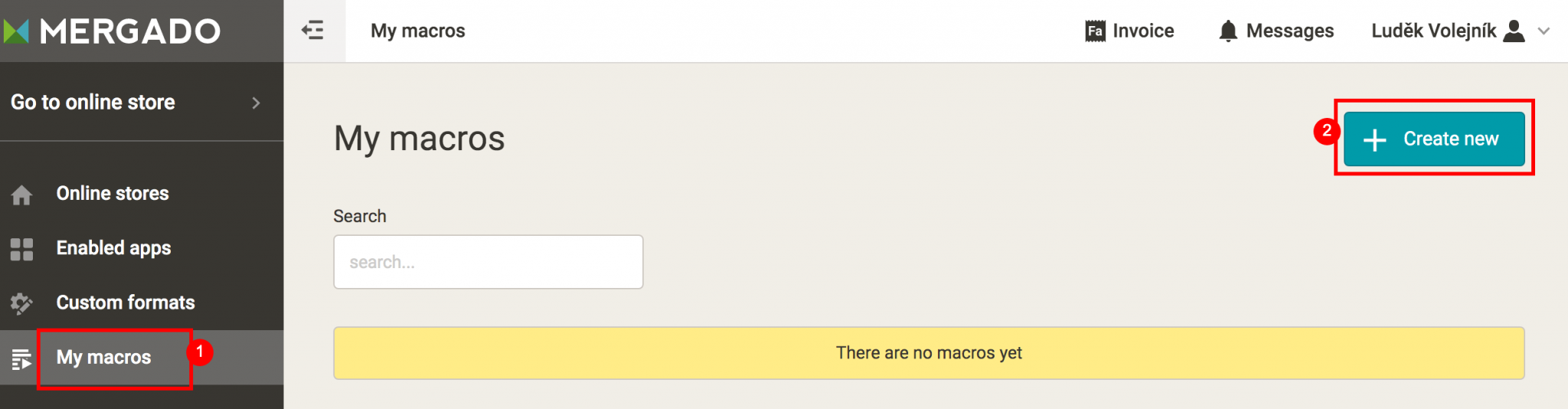
From the main Mergado page, go to the *Custom* *Macros* page and select **+ Create New**.
[  ](https://www.mergado.com/sites/default/files/perm/paragraph-image/creting-custom-macro-in-mergado-1.png)
### **Task:**
Let’s create a two-step macro for **Google DSA export** that hides cheap products and fills the CUSTOM LABEL element with **availability information and product manufacturers**.
This macro will be helpful for exports used in Google Ads for [DSA campaigns](https://www.mergado.com/dsa-campaigns).
### Instructions
- ### Step 1: Hide cheap products
We can **define** parameters in a macro that can be customized to a particular export before it is run. In our case we define **two** **parameters**:
- price [element](https://www.mergado.com/tag/elements)
- element with the amount from which we consider the product as cheap
Before running the macro, we can either **change or individually set both**.
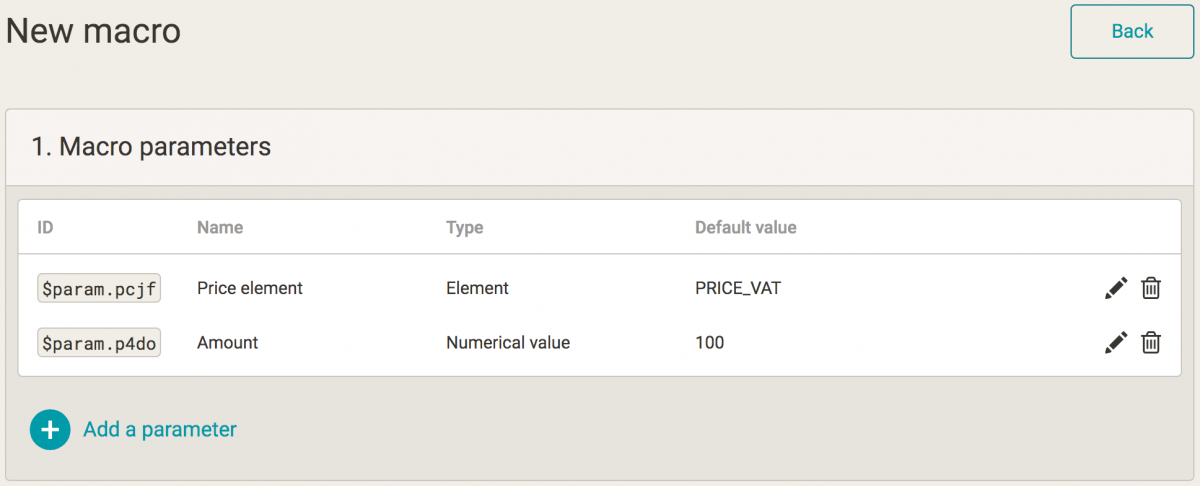
##### *How to add parameters.*
Now let’s add **two actions:**
**1. Choose cheap products:**
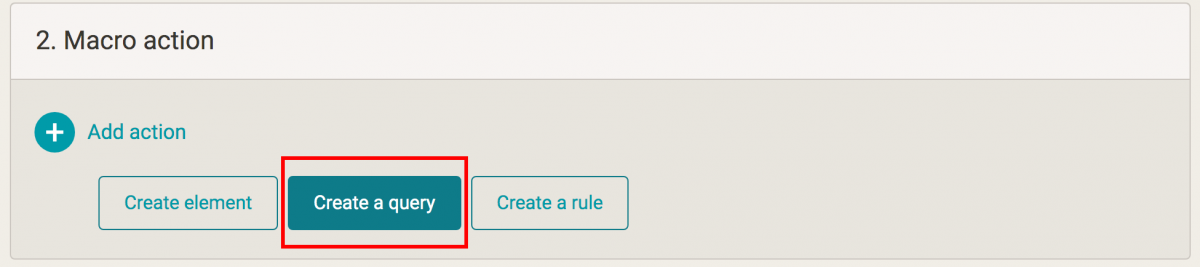
1\. Click *Add* *action* and choose *Create* *a query*.
2\. When writing the query condition, use the previously defined macro **parameters** and write it as follows:
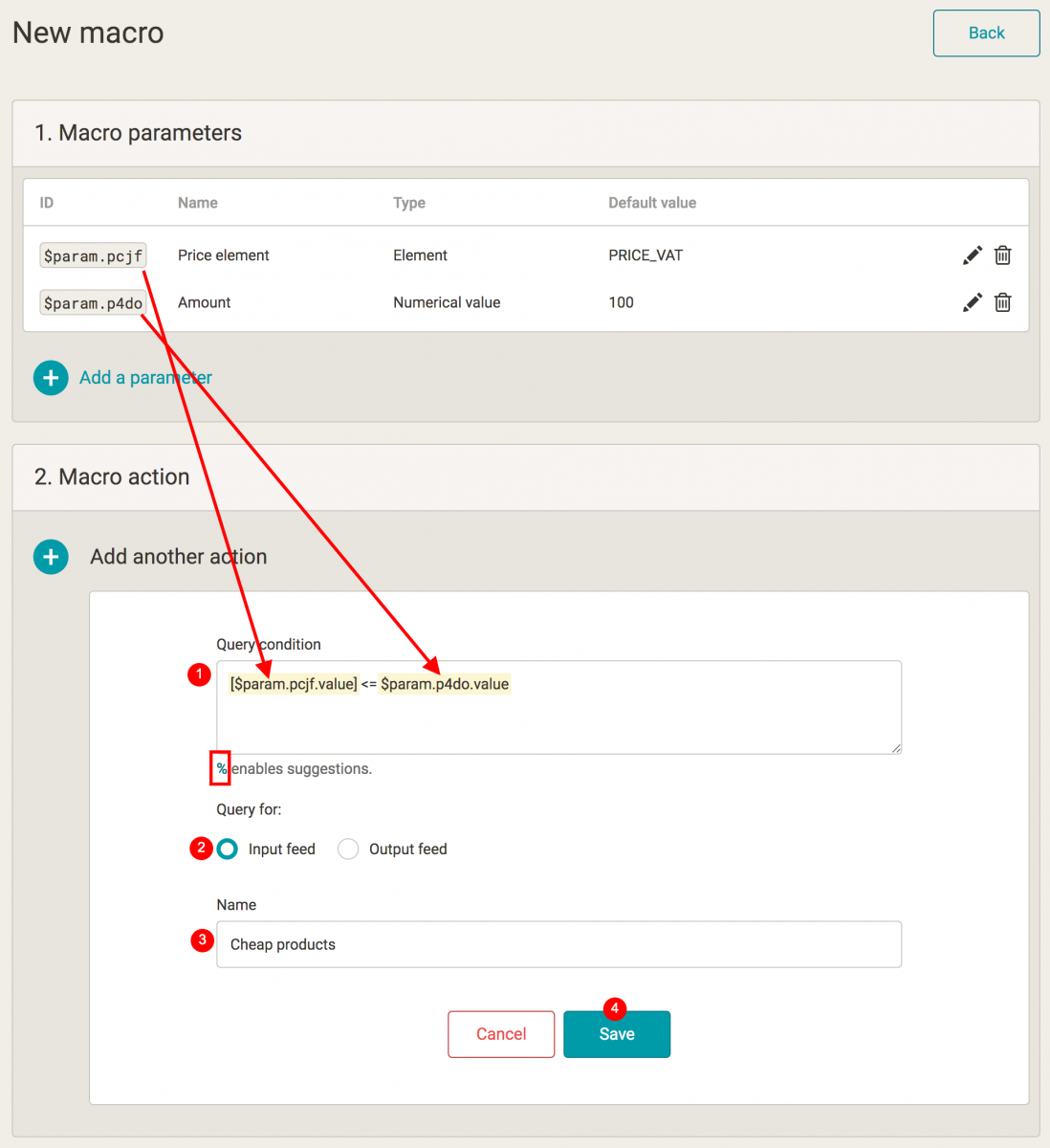
**Note:** As soon as we enter the % sign for the condition, we will activate the **autocomplete**, and we just select a particular value.
3\. **Name** and save the query.
**2. Hide the selected query with a hiding rule:**
1\. Click on *Add* *action* and select *Create* *rule*
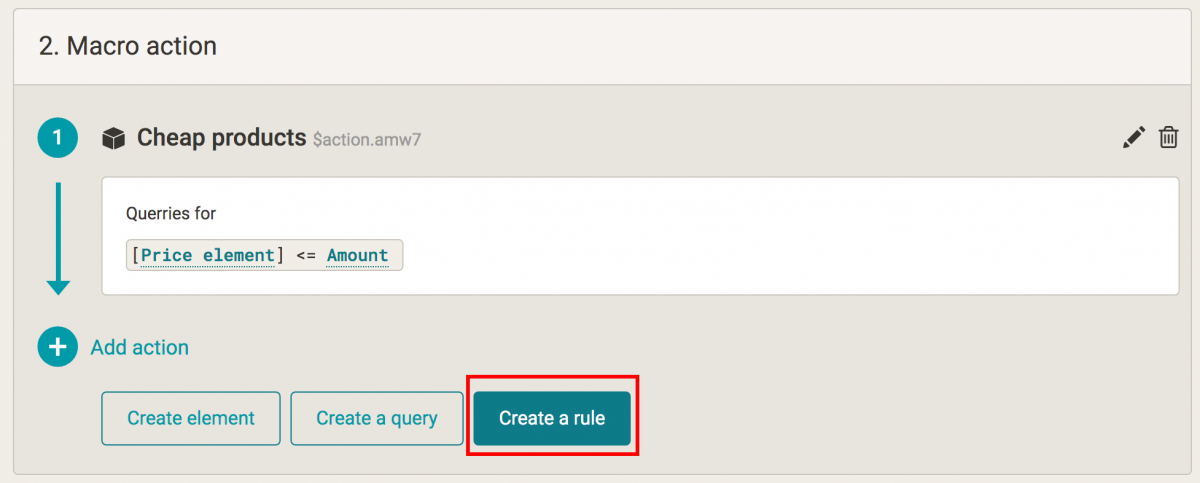
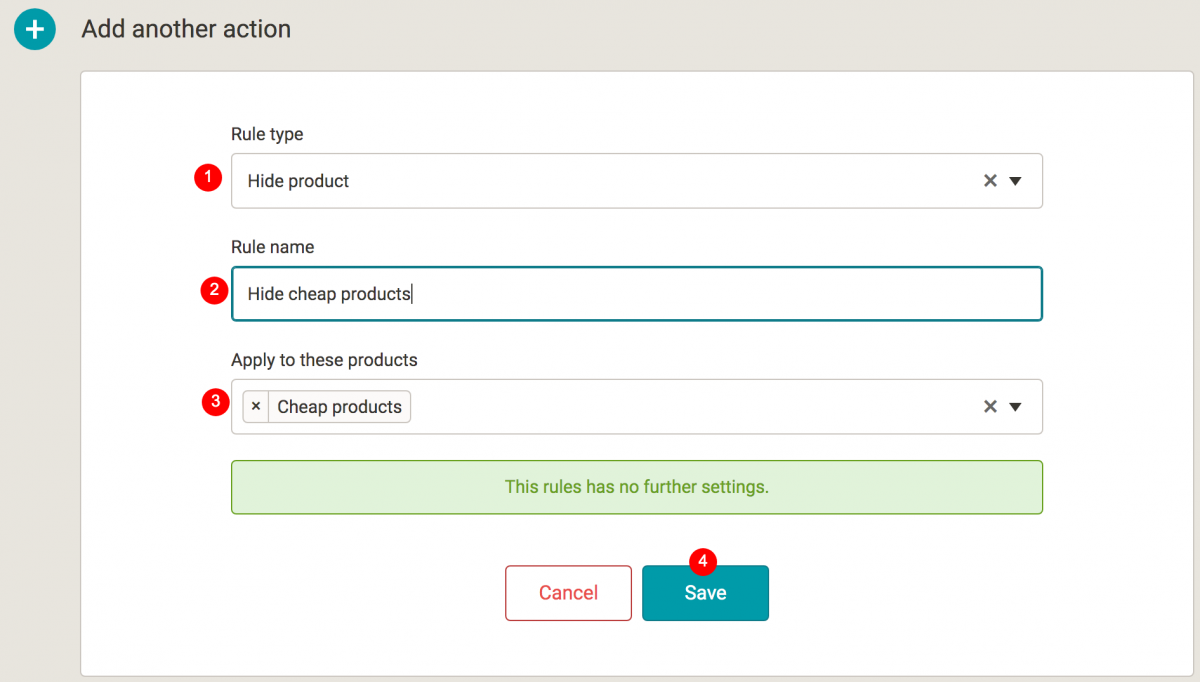
2\. Choose the *Hide* *product* [rule](https://www.mergado.com/tag/rules-in-mergado), **name** it, select a query of cheap products created by us, and save:
- ### Step 2: Fill CUSTOM LABEL
We will return to the macro parameter table and **add** one more: the CUSTOM LABEL element.
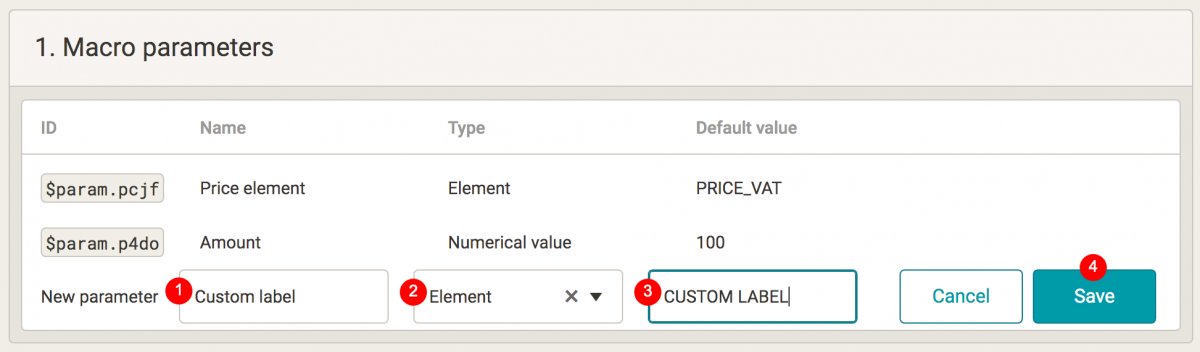
##### *Adding a custom label element.*
We add it so we can then **use** it in the rewriting rule (still within the macro).
In addition to the macro parameters, we add two more: **the** **availability information and the product manufacturer**, which we will also use in the rewriting rule in the field for the new value.

##### *Adding parameters with availability information and product manufacturer.*
Now we **create a rewriting rule:**
1\. Click on *Add* *action* and select *Create* *rule*.
2\. Choose the *Overwrite* rule, **name** it, set the query on **all** **products** (here we could create a different query in advance if appropriate), **select** the query of cheap products and in the field for the new value **insert** the variables from our parameters, more precisely, get the following variables (after entering the character %) by autocomplete:
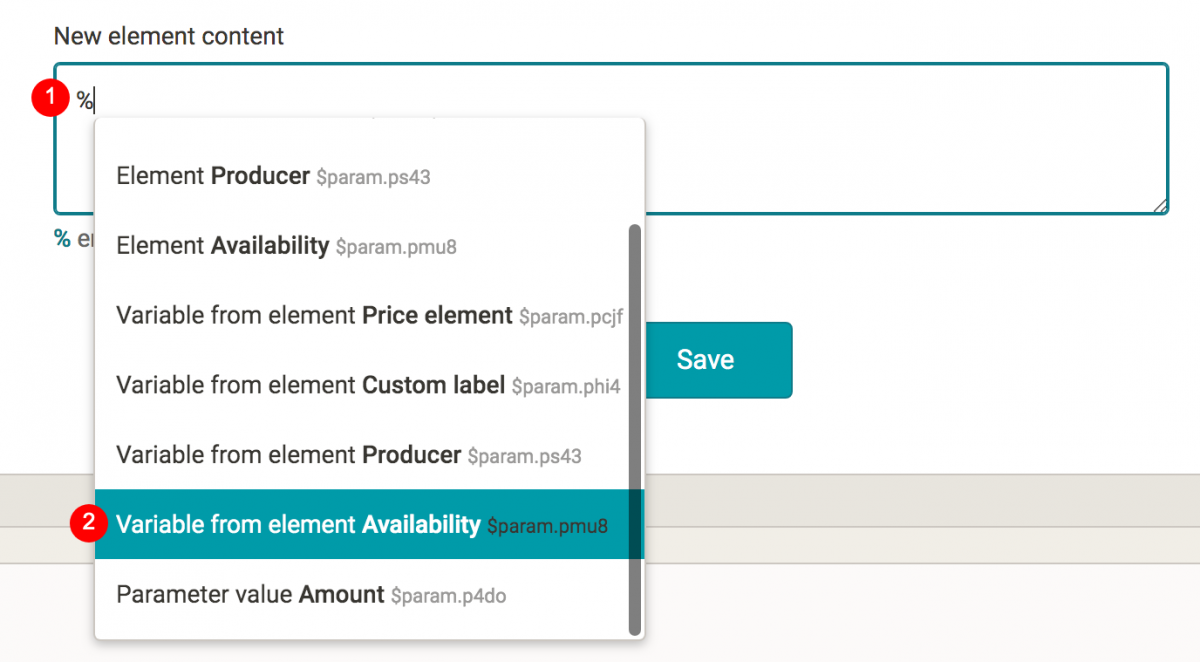
3\. This is **how it will look**:
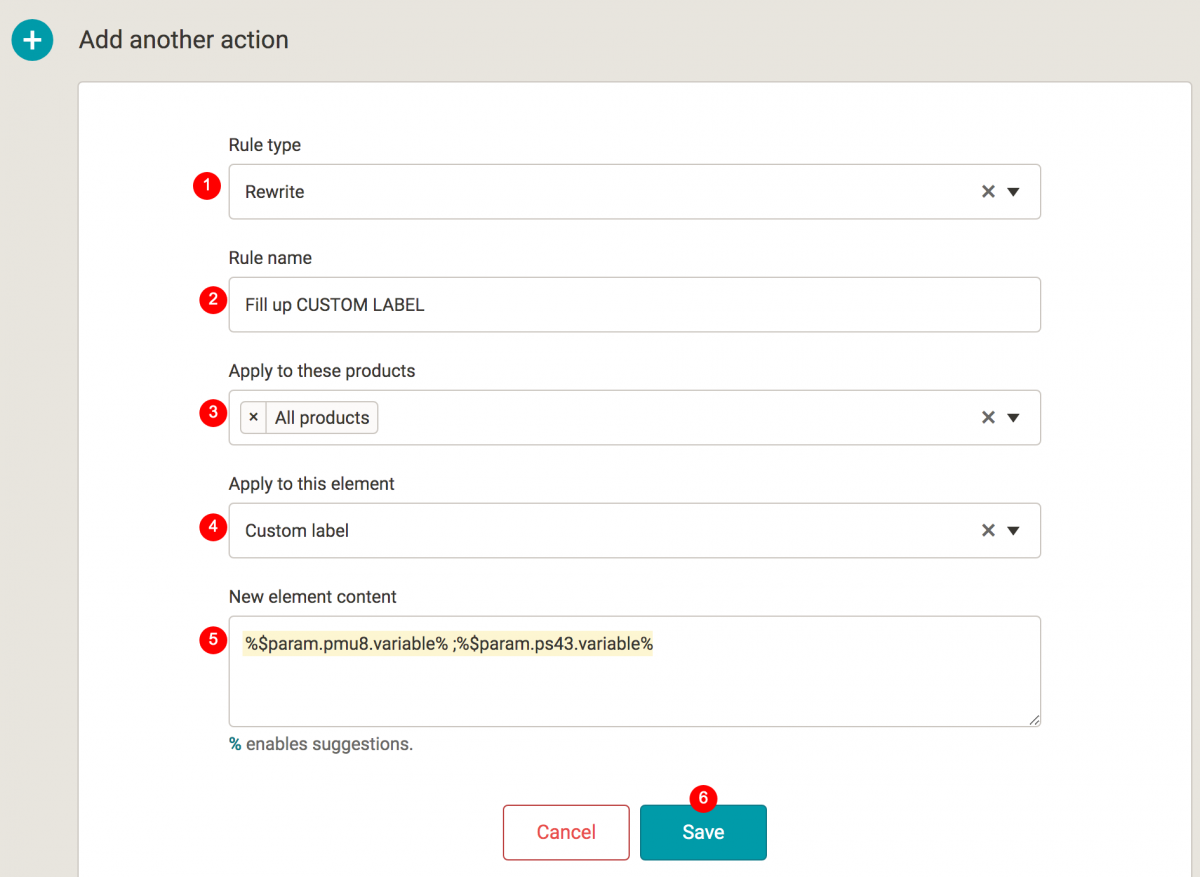
4\. **Save** the rule.
- ### Conclusion: Saving the macro
Now we just **name** the whole macro, fill in the **description**, and **save** it.
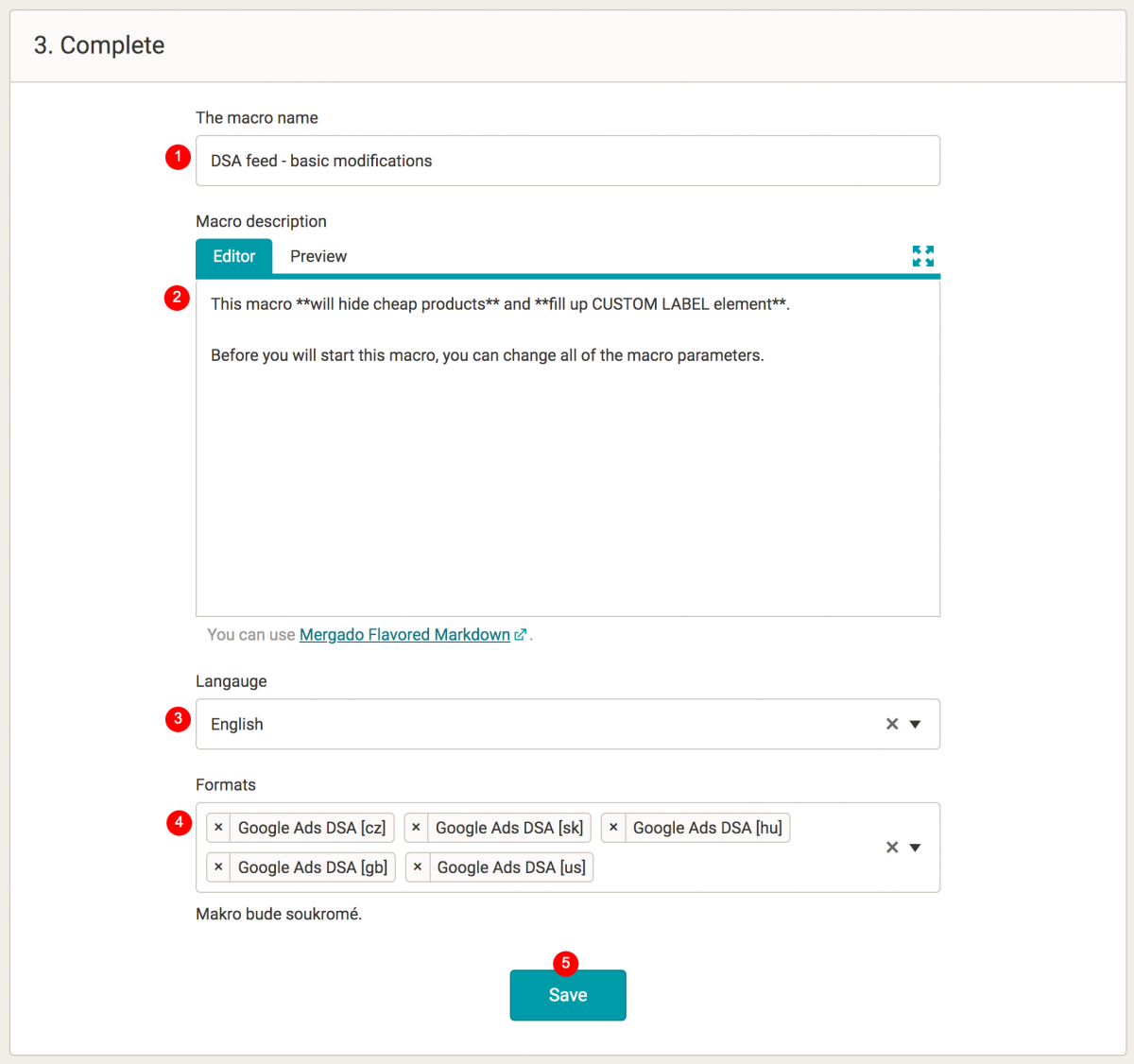
##### *Adding a macro name and description.*
- ### Running a macro
**1.** First, go to a **particular export**, specifically the Macros page:
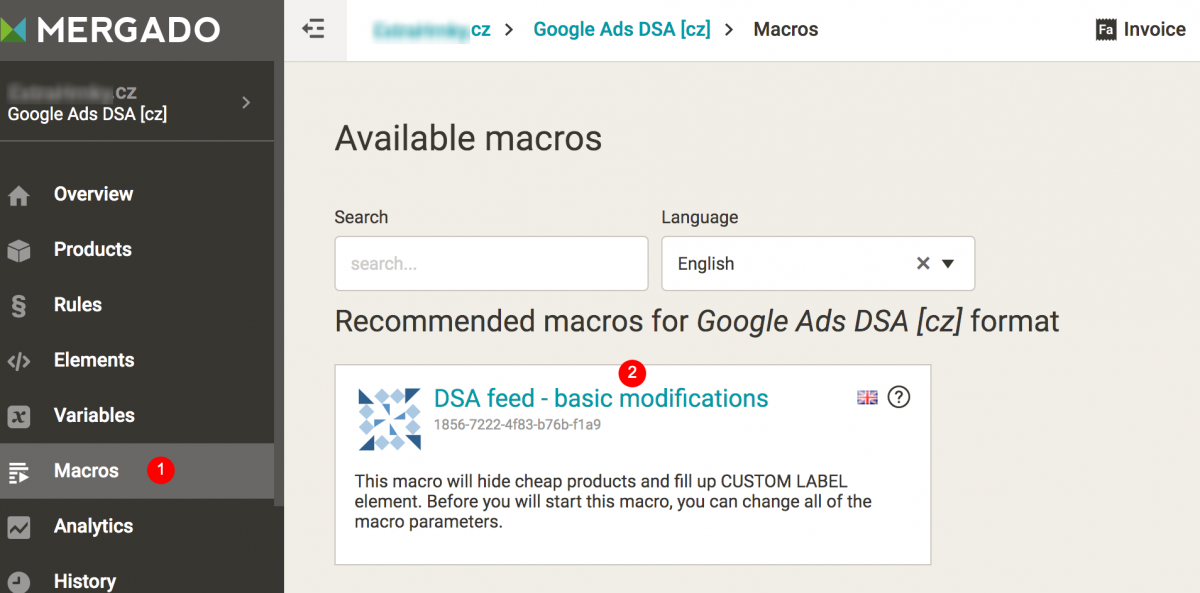
##### Overview of available macros in a particular export.
**2.** Then click through to the macro **detail**, check or modify the parameters and finally **run** the macro.
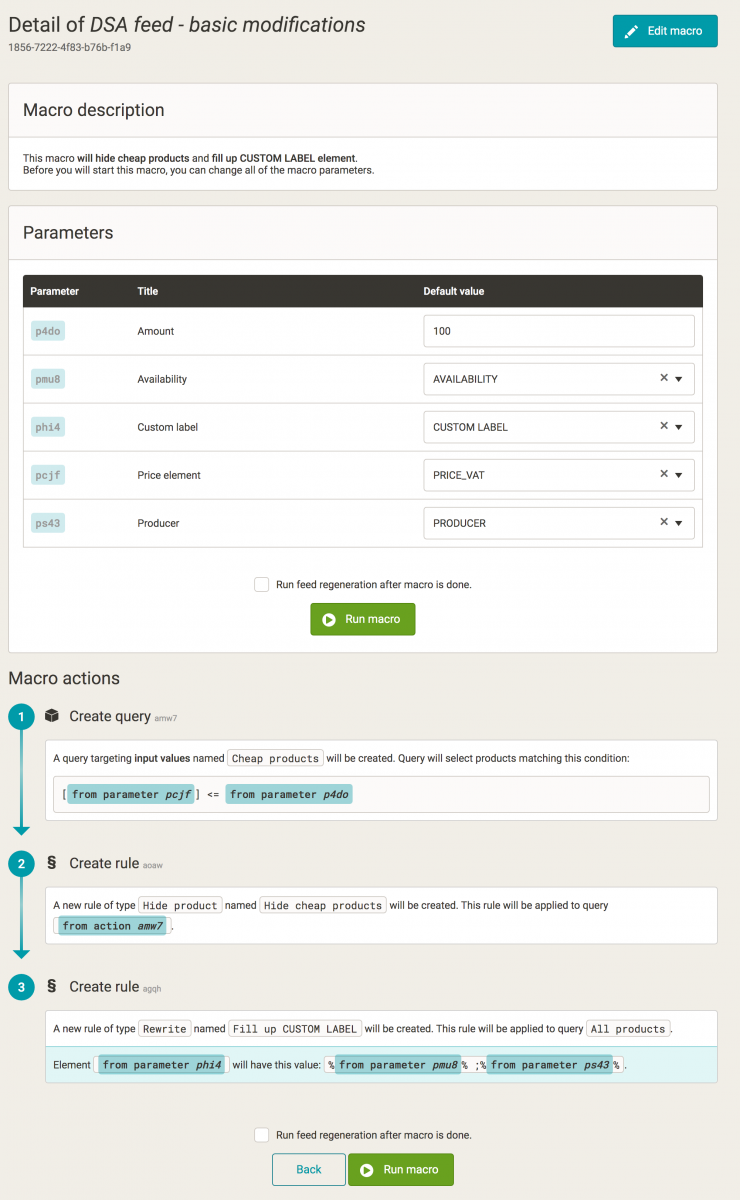
##### *Preview of the created macro before the final run.*
Although there are quite a few steps to create a new macro, the procedure is not difficult at all. Go through our tutorial — in a minute, you will learn how to create macros **like a pro**. Do you have **questions** regarding macros? Ask them in our [forum](https://forum.mergado.com/t/macros-in-mergado/266).
### **You could be interested in:**
[ 
### MASTER PROMPT TEMPLATE FOR ECOMMERCE
](https://www.mergado.com/blog/master-prompt-eshopy-b2c)
[ 
### How Feed Optimization Unlocked Meta Ads Performance without Increasing Ad Spend
](https://www.mergado.com/blog/feed-optimization-for-meta-ads)
[ 
### How to Sell Successfully on idealo
](https://www.mergado.com/blog/successful-sale-on-idealo)
[  ](https://www.mergado.com/blog/lukas-horak)### [ Lukáš Horák ](https://www.mergado.com/blog/lukas-horak)
Lukáš takes care of most of the Czech and English communication in Mergado. Through blogs, e‑mail, and social networks, he regularly supplies readers with e‑commerce news and news and tips from Mergado. In his time off, he enjoys simple things like badminton, digging the hidden gems of the 80’s, and seafood served with red wine.
## What you *might be interested in next*
[ 
### How We Migrated an E‑Shop from Shoptet to Shopify with Mergado: A Complete Migration Without Data Loss
](https://www.mergado.com/blog/how-we-migrated-e-shop-shoptet-shopify-mergado-complete-migration-without-data-loss)
[ 
### How to open large XML file
](https://www.mergado.com/blog/how-to-open-large-xml-file)
[ 
### Introducing smart value insertion. It will speed up the creation of bulk rules
](https://www.mergado.com/blog/smart-value-insertion)
## Don’t miss *anything*
Sign up for our newsletter
By logging in, you agree that we will process your data by the [terms of personal data protection](https://www.mergado.com/cookies).
Thank you, you have successfully joined our subscriber's list.
function ml_webform_success_5807248() {
var r = ml_jQuery || jQuery
r('.ml-subscribe-form-5807248 .row-success').show(), r('.ml-subscribe-form-5807248 .row-form').hide()
}