- [Case Studies](https://www.mergado.com/category/case-studies)
- [eCommerce tips](https://www.mergado.com/category/ecommerce-tips)
- [Online Store Solutions and Platforms](https://www.mergado.com/category/online-store-solutions-and-platforms)
- [Mergado Pack](https://www.mergado.com/category/mergado-pack)
- [Mergado tips](https://www.mergado.com/category/mergado-tips)
- [Mergado News](https://www.mergado.com/category/mergado-news)
- [eCommerce News](https://www.mergado.com/category/ecommerce-news)
- [How to use Mergado](https://www.mergado.com/category/how-to-use-mergado)
- [Interviews with e‑commerce gurus](https://www.mergado.com/category/interviews-e-commerce-gurus)
- [Extensions](https://www.mergado.com/category/apps-bidding-image-marketing-and-more)
- [Expansion with Mergado](https://www.mergado.com/category/expansion-with-mergado)
- [Mergado Lifestyle](https://www.mergado.com/category/mergado-lifestyle)
1. [ Home ](https://www.mergado.com/)
2. [ Mergado Blog ](https://www.mergado.com/blog)
3. [ Extensions ](https://www.mergado.com/category/apps-bidding-image-marketing-and-more)
4. **Make your image advertising better with new Feed Image Editor features #2**
# **Make your image advertising better with new Feed Image Editor features #2**
[  Lukáš Horák ](https://www.mergado.com/blog/lukas-horak) [Extensions](https://www.mergado.com/category/apps-bidding-image-marketing-and-more)
3. 7. 2019
3 minutes read

In [the previous news](https://www.mergado.com/better-image-advertising-with-feed-image-editor-1) from [Feed Image Editor](https://store.mergado.com/detail/feedimageeditor) app, we’ve introduced some handy **features**. But that’s not all. In recent months, its developers have added a few more **upgrades** to make the image advertising management more enjoyable.
function tableOfContents() {
return {
headings_menu: [],
heading_active: '', // Added to track the active section
shouldBeSticky: false,
generateToC() {
const headings = document.querySelectorAll('.js-article-full-headings h2, .js-article-full-headings h3');
let headingMap = {};
headings.forEach((heading) => { // Use an arrow function to maintain `this` context
// Normalize heading text to remove diacritics, then replace non-alphanumeric characters with dashes
var normalizedText = heading.textContent.normalize("NFD").replace(/[\u0300-\u036f]/g, ""); // Remove diacritics
var id = heading.id ? heading.id : normalizedText.trim().toLowerCase()
.split(' ').join('-').replace(/[^a-z0-9\-]/ig, ''); // Updated regex to replace non-alphanumeric characters
headingMap[id] = headingMap[id] !== undefined ? ++headingMap[id] : 0;
// Use the updated `id` with diacritics removed for the heading id and the TOC
const finalId = headingMap[id] ? `${id}-${headingMap[id]}` : id;
this.headings_menu.push({
id: finalId,
title: heading.textContent,
level: heading.tagName.toLowerCase(), // Track heading level
active: false, // Initially set active to false
});
heading.id = finalId;
});
},
checkStickyNeeded() {
const ul = this.$el.querySelector('ul');
if (ul) {
this.shouldBeSticky = ul.scrollHeight < window.innerHeight;
}
},
setActiveHeading() {
// disabled not working with active state on click
// add @scroll.window="setActiveHeading()" to the parent div
// const headings = document.querySelectorAll('.js-article-full-headings h2');
// let activeHeading = '';
// let closestHeadingDistance = Infinity;
// headings.forEach((heading) => {
// const rect = heading.getBoundingClientRect();
// const offset = rect.top - window.innerHeight / 2; // Consider heading in the middle of the screen as active
// if (offset < 0 && Math.abs(offset) < closestHeadingDistance) {
// activeHeading = heading.id;
// closestHeadingDistance = Math.abs(offset);
// }
// });
// // Update the active state in headings_menu
// if (activeHeading !== this.heading_active) {
// this.headings_menu = this.headings_menu.map(item => ({
// ...item,
// active: item.id === activeHeading,
// }));
// this.heading_active = activeHeading;
// }
},
setActiveItem(clickedId) {
this.headings_menu.forEach(item => {
item.active = (item.id === clickedId);
});
this.heading_active = clickedId; // Optionally update the heading_active property if used
},
};
}
1. —
In [the previous news](https://www.mergado.com/better-image-advertising-with-feed-image-editor-1) from [Feed Image Editor](https://store.mergado.com/detail/feedimageeditor) app, we’ve introduced some handy **features**. But that’s not all. In recent months, its developers have added a few more **upgrades** to make the image advertising management more enjoyable.
## Offer products in stock
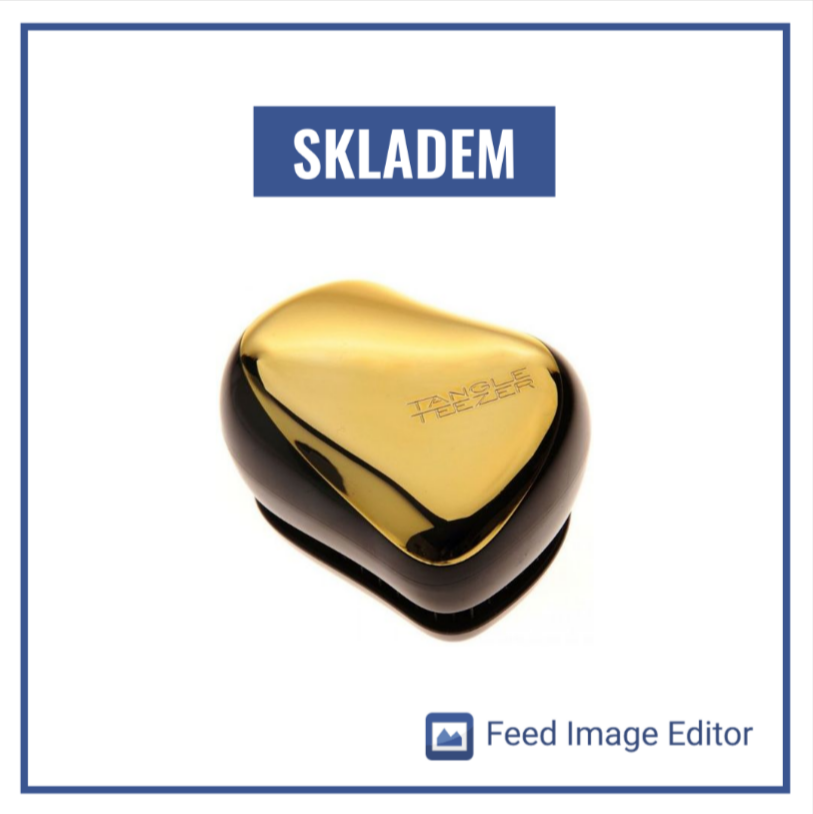
Customer decision making is significantly influenced by the fact that the goods are **in** **stock**. Create a stock query in Mergado and apply a template to it.
**Instructions:**
1\. On the *Products* page in Mergado, make **a** **query** of the products you have in stock. Just enter the **DELIVERY\_DATE** condition **is 0**.
2\. Name the query, for example, **Stock** **Products** and **save**.
3\. In the Feed Image Editor, create a New Template and **select** a product query that is created for it.
• Set the resulting product photo **format**.
[  ](https://www.mergado.com/sites/default/files/perm/paragraph-image/obr3-clanek2.png)
## Preview sub-page
You **do not need to delete** templates created in the Feed Image Editor that you are not currently using. In order to **use them in the future**, the *Preview* sub-page is available in the application.
On the *Preview* sub-page, you’ll see how your ad **really** **looks** and find possible **errors**.
## Use the Overlap function
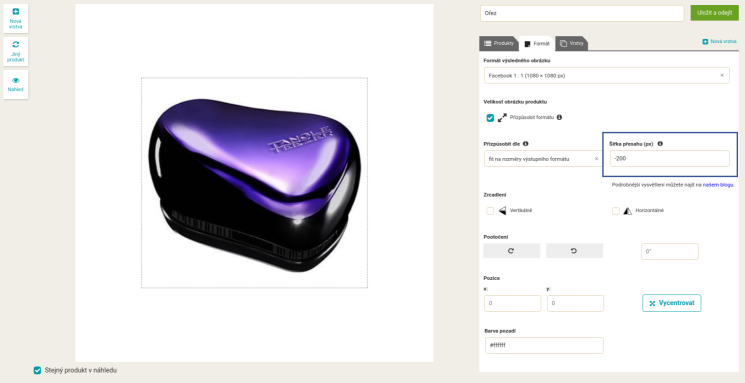
There are many ways to edit product photos in FIE. The new *Overlap* feature will help you create **space for additional graphics or crop the manufacturer’s logo**.
**How to crop a product photo:**
1\. In Mergado, choose the **query** of products you want to crop. **Name it and save it**.
2\. In the Feed Image Editor, create **a new template** and select the products you need.
3\. On the Format sub-page, select the resulting ad **size** and **customize** the image to the resulting format.
• To crop photos, you will work in the *Overlap* field. You specify the crop size in **pixels**.
**How to reduce your product photo:**
1\. Enter **minus** **values** to reduce your images.
2\. All your photos will be the same size and space for **graphic** **elements** will be created.
[  ](https://www.mergado.com/sites/default/files/perm/paragraph-image/obr6-clanek2.png)
## Stand out with your own background
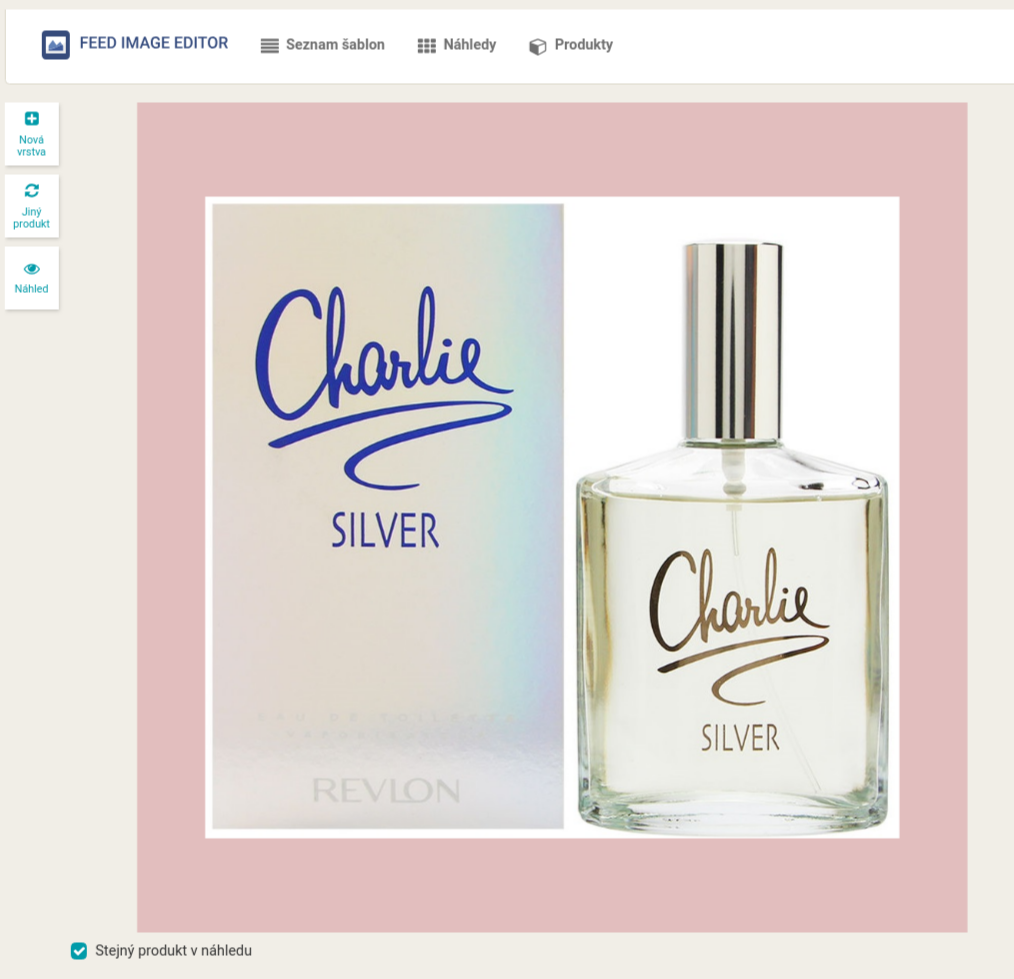
For advertising on comparison engines or Google Shopping, you need to have **a white background** for your photos. Facebook and Instagram allow you to **use photos with a colorful background** to distinguish yourself from the competition.
**Add custom background to product images:**
1\. In the Feed Image Editor, in the *Format* tab, select **Background** **Color**.
2\. Choose from preset colors, or enter your own code (RGB hexadecimal without #, or RGBA).
3\. You can also use your **own** **image** as your background — on the *Layers* tab, select **Image** and paste .png in the size of the resulting ad.
[  ](https://www.mergado.com/sites/default/files/perm/paragraph-image/obr7-clanek2.png)
## Eliminate 404 error forever
404 error message means the target image **was not found**. In that case, Feed Image Editor won’t find the image — it won’t appear in your ad. If such URLs are in your feed, they need to be **rewritten as soon as possible**.
**Intructions:**
1\. In the Feed Image Editor, go to the *Products* page.
2\. Click the **Status** **Code** window.
- If you **don’t see 404: Page not found** in this window, your feed **doesn’t contain** such pages.
3\. The app will list your 404 URLs and you will know which to **change**.
## Use Custom Image Set
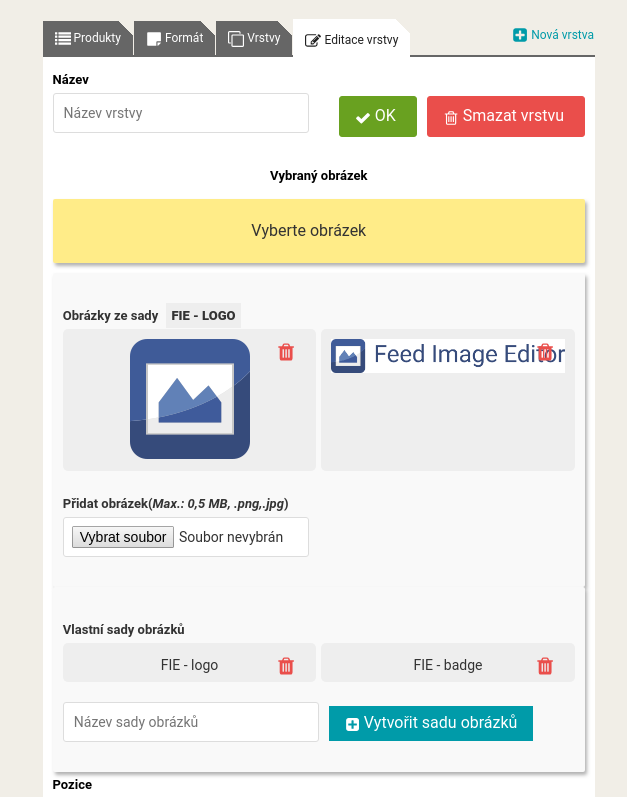
The functionality Custom Image Set is useful when you **repeatedly** **insert** the same themes (logo, mascot, etc.) into your photos. Uploaded graphics will be available **for each template** for that export without having to reload it.
**Instructions:**
1\. In the app, go to creating **a new template**.
2\. On the *Layers* tab, select **New** and choose **Custom** **Set** from the options.
3\. **Name** **it** and open a menu for **inserting** new images.
4\. **Upload** the selected images and save the layer.
[  ](https://www.mergado.com/sites/default/files/perm/paragraph-image/obr9-clanek2.png)
And that’s all. We’ll keep you informed of other news from the Feed Image Editor. And if you still haven’t turned on this great app, [try it out](https://store.mergado.com/detail/feedimageeditor/). If you give it a chance for a few days, you will learn how **useful** it is **for creating an image advertisement**.
### **You could be also interested in:**
- [ MERGADO Apps ](https://www.mergado.com/tag/mergado-apps)
[  ](https://www.mergado.com/blog/lukas-horak)### [ Lukáš Horák ](https://www.mergado.com/blog/lukas-horak)
Lukáš takes care of most of the Czech and English communication in Mergado. Through blogs, e‑mail, and social networks, he regularly supplies readers with e‑commerce news and news and tips from Mergado. In his time off, he enjoys simple things like badminton, digging the hidden gems of the 80’s, and seafood served with red wine.
## What you *might be interested in next*
[ 
### GPSR on Allegro and Kaufland
](https://www.mergado.com/blog/gpsr-allegro-kaufland)
[ 
### Show the most suitable alternative products. More customers will buy from you
](https://www.mergado.com/blog/alternative-products)
[ 
### How to optimise product images
](https://www.mergado.com/blog/how-optimise-product-images)
## Don’t miss *anything*
Sign up for our newsletter
By logging in, you agree that we will process your data by the [terms of personal data protection](https://www.mergado.com/cookies).
Thank you, you have successfully joined our subscriber's list.
function ml_webform_success_5807248() {
var r = ml_jQuery || jQuery
r('.ml-subscribe-form-5807248 .row-success').show(), r('.ml-subscribe-form-5807248 .row-form').hide()
}